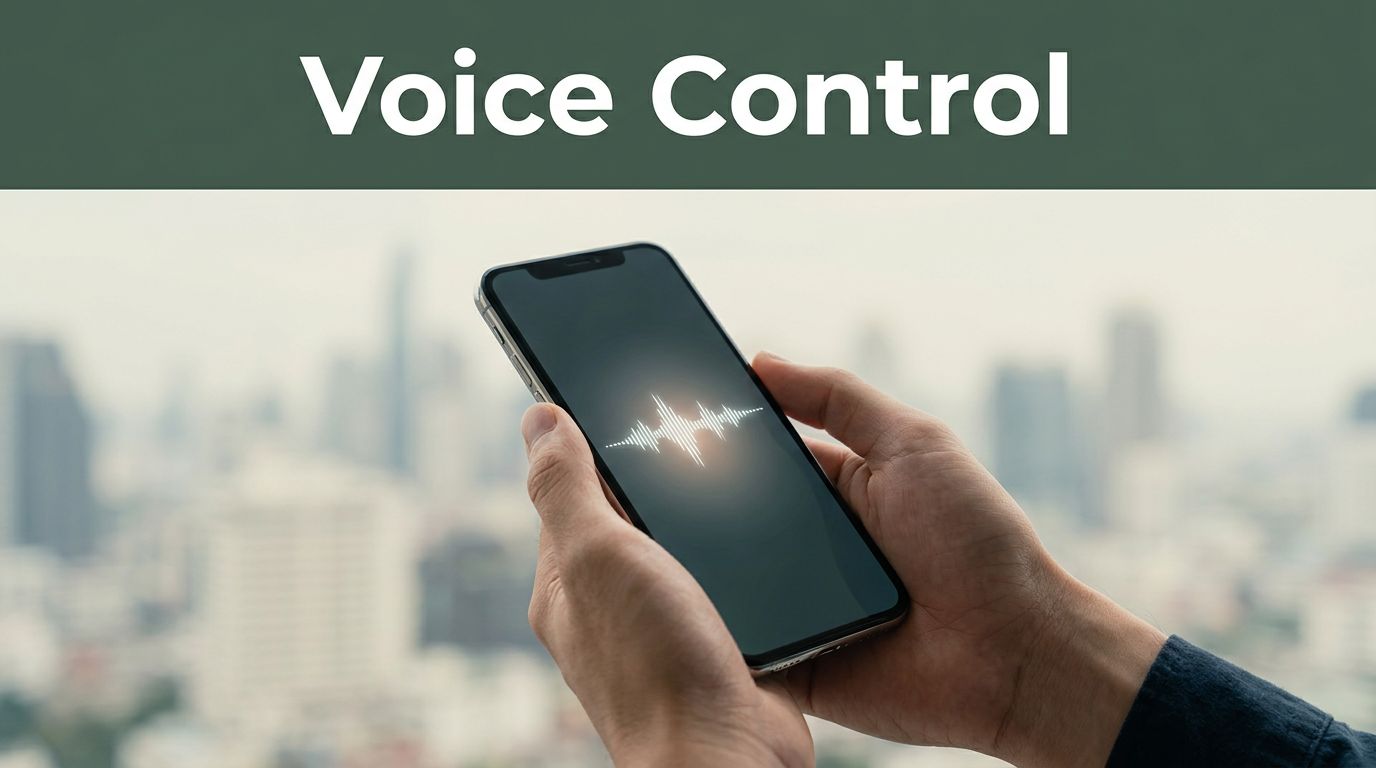
Picture this. You’re chopping vegetables for dinner, hands messy, and you say, “Hey Siri, set a timer for 20 minutes.” Done. No fumbling with your phone. Or you’re stuck in traffic and tell Gemini, “Find the quickest route home and play upbeat music.” It handles both instantly.
Voice assistants like Siri, Gemini, and Bixby make life easier on smartphones. They offer hands-free control, save time on tasks, and pack fresh AI smarts in 2026. Siri shines on iPhones with tight Apple ties. Gemini powers most Androids with chatty help. Bixby boosts Samsung Galaxies for deep device tweaks.
This guide walks you through picking yours, setting it up, daily commands, and pro fixes. You’ll master these tools fast. Let’s start by matching one to your phone.
Pick the Perfect Voice Assistant for Your Phone Type
Your phone decides your best voice helper. iPhone users stick with Siri for smooth Apple flow. Android folks grab Gemini for smart chats. Samsung owners lean on Bixby for custom controls. Each got big upgrades in March 2026, like better context smarts and natural talk.
Here’s a quick comparison of their top traits:
| Assistant | Best Phones | Key 2026 Upgrade | Top Uses |
|---|---|---|---|
| Siri | iPhone (15 Pro+) | On-screen awareness, personal context | Apple apps, HomeKit, privacy |
| Gemini | Pixel, most Android | Natural convos, Gemini Live | Planning, emails, camera help |
| Bixby | Galaxy S26 series | Natural commands, web answers | App tweaks, photo edits, routines |
Match yours to avoid frustration. iPhone? Siri integrates everywhere. Android? Gemini feels like a friend. Galaxy? Bixby knows your hardware inside out.
Siri: Ideal for iPhone and Apple Fans
Siri leads on iPhones, especially with Apple Intelligence in iOS 26.4 this spring. It spots your screen content and acts smart. See a calendar invite? Say, “Move this meeting.” Siri checks flights or emails and reschedules.
Personal context pulls from your habits. Ask, “Plan my kid’s party,” and it scans dates, suggests venues, drafts invites. HomeKit controls lights or locks by voice. Privacy stays strong with on-device processing.
Activate with “Hey Siri” or the side button, even locked. Type-to-Siri works in quiet spots. For full steps, check Apple’s Siri guide for iPhone. It fits Apple fans perfectly because everything connects.
Gemini: Your Go-To for Android Power Users
Gemini took over from Google Assistant on Android by March 2026. It handles fluid chats on Pixel 10 or other devices. Interrupt mid-sentence or switch topics; it follows along.
Link it to Gmail or Calendar for summaries and plans. Say, “Summarize my emails,” and get key points fast. Gemini Live shares your screen or camera for real-time aid, like translating signs. Battery tweaks and photo smarts add value.
Wake it with “Hey Gemini” or power button. On-device mode speeds things up offline. Most Androids run it now, so you get proactive reminders from your routine.
Bixby: Samsung Galaxy’s Built-In Productivity Boost
Bixby rules Galaxy phones with One UI 8.5 updates. Speak naturally, like “My eyes hurt,” and it flips on Eye Comfort Shield. No exact phrases needed.
Pull web info instantly via Perplexity AI. Ask questions; answers pop up without apps. Multi-step tasks book rides or share trip photos from context. Daily briefs show timers or nudges on lock screen.
Say “Hi Bixby” or remap the side button. It edits photos or curates news feeds by voice. Samsung depth makes it a productivity pick.
Set Up Your Assistant and Get It Listening Right Away
Setup takes minutes since they’re pre-installed. Head to settings, enable the wake word, train your voice, and link accounts. Updates unlock 2026 features, so check first. You’ll chat hands-free soon.
On-device processing boosts speed and keeps data private. Most work offline for basics.
Quick Setup Steps That Work on Any Phone
Follow these steps for any assistant:
- Open Settings app.
- Tap Voice Assistant or Siri & Search (names vary).
- Turn on “Hey Siri,” “Hey Gemini,” or “Hi Bixby.”
- Train your voice by repeating phrases; it learns accents.
- Connect calendar, email, or music apps.
- Pick on-device mode for quick responses.
Update your OS, like iOS 26.4 or Android 16, for latest perks. Test with “What’s the weather?”
Easy Ways to Activate Without Touching Your Screen
Hands-free rules in cars or kitchens. Siri uses “Hey Siri” or side button hold. Gemini responds to “Hey Gemini” or power button double-tap. Bixby hears “Hi Bixby” or side button (remap if needed).
All work locked or offline for alarms and timers. Power users set button-only to save battery. Practice once; it sticks.
Everyday Commands and Advanced Tricks to Save Time
Start simple: timers, calls, weather. All assistants nail these. Then level up with context smarts. 2026 models remember chats and handle follow-ups.
Speak clearly; they understand natural speech now.
Simple Commands You’ll Use Every Day
These work across Siri, Gemini, and Bixby, often offline:
- “Set a timer for 10 minutes.”
- “Play jazz on Spotify.”
- “Call Mom.”
- “What’s the weather today?”
- “Wake me at 7 AM.”
They pull from your apps fast. Add music services beforehand for seamless play.
Advanced Features That Feel Like Magic
Siri grabs screen context: “Add this address to contacts.” HomeKit dims lights: “Good night.”
Gemini plans weeks: “Schedule my day around workouts.” Describe photos: “What’s in this picture?” It chats long-form.
Bixby dives deep: “Edit this photo brighter.” Optimize battery: “Save power now.” Routines chain tasks.
Follow up naturally, like “Remind me tomorrow instead.” On-screen actions tap buttons for you.
Smart Tips, Cool Tricks, and Fixes for Common Glitches
Speak like you talk to a friend; no shouting. Create routines, like “Good morning” for news and coffee brew. Switch languages mid-chat. Review privacy settings often.
Battery drain? Limit always-listen. Update apps weekly.
Pro Tips and Hidden Tricks for Maximum Fun
Build routines: “Night mode” locks doors and plays sleep sounds. Brainstorm recipes: “Suggest dinner with chicken.” Tweak battery via voice.
Multi-language works; say “Switch to Spanish.” Car mode shines hands-free. Experiment in quiet first.
Quick Fixes for When It Doesn’t Listen Right
Won’t wake? Retrain voice model. Wrong answers? Correct out loud: “No, try again.”
Battery hogs? Use button activation. Permissions glitch? Check mic access in settings. Restart phone or clear cache.
Privacy worry? Delete history anytime. Toggle off cloud processing.
Voice assistants transform your phone into a smart sidekick. Pick based on your device, set up quick, master commands, and tweak as needed. Try “Set a reminder for lunch” right now.
What’s your go-to command? Share in comments or subscribe for more phone tips. Get chatting today.