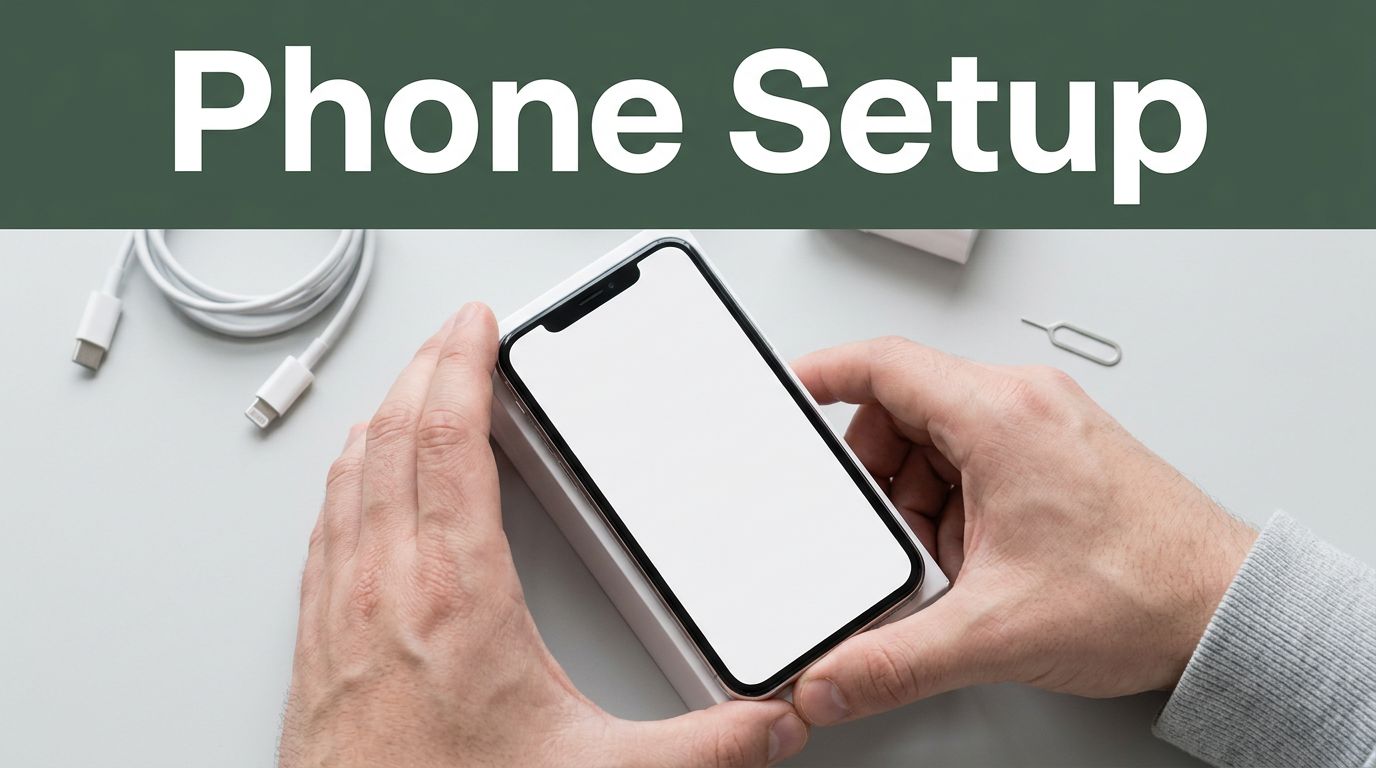
You just unboxed that shiny new Android or iPhone. The fresh scent of the box hits you, and excitement builds. Proper setup saves hours later. It keeps your data safe and unlocks features like Android 16’s smoother backups or iOS 19’s privacy tweaks.
Skip a rushed job, and you risk lost photos or weak security. This guide walks you through every step for 2026 models. Whether you switch from an old phone or start fresh, it covers both platforms. You’ll handle unboxing, data transfer, security, and tweaks.
Grab your new phone, old device if switching, Wi-Fi password, and charger. Total time runs 30 to 90 minutes. Let’s get started so you enjoy it right away.
Unbox, Charge, and Power On Your New Phone
Open the box carefully. Inside, find the USB-C cable, SIM tool, and quick-start guide for most Androids or iPhones. Charge the battery to at least 50% first. Plug it in and wait 15 minutes.
Insert the SIM card next. Use the tray tool to pop out the side slot. Slide the nano-SIM into place. Power on by holding the side button until the logo appears.
Connect to Wi-Fi early. Updates need it, and setup flows faster. Stay plugged in during this phase.
Handle the Basics: SIM, Language, and Wi-Fi
Swipe up to begin. Pick your language and region from the list. Android shows more options than iPhone here.
Tap a strong Wi-Fi network. Enter the password. Choose one with full bars for quick downloads. Both phones prompt this screen early.
SIM works the same on both. Android might detect eSIM options too. Skip if you use digital carriers.
Install the Latest Software Update Immediately
Updates pop up right away. Tap to download Android 16 or iOS 19 patches. March 2026 fixes include security boosts against remote hacks.
Keep the phone charging. Downloads take 10 to 30 minutes. Install after. Restart follows.
This step fixes bugs early. It adds features like better Wi-Fi sync on Android. Your phone runs optimal from day one.
Fresh setup screen during initial power-on.
Transfer All Your Data Without Losing a Thing
Prep your old phone first. Update it, back up to cloud, and charge fully. New setups offer cable or wireless options.
Photos, contacts, messages, apps, and passwords move over. Times vary from 30 to 60 minutes. No old phone? Skip and add manually later.
Pick your switch type below. Follow prompts on screen.
| Switch Type | Method | What Transfers |
|---|---|---|
| Android to Android | Google backup or cable | Apps, photos, settings |
| iPhone to iPhone | iCloud or Quick Start | Everything via wireless |
| Android to iPhone | Move to iOS app | Contacts, messages, media |
| iPhone to Android | QR code scan | Photos, apps, eSIM data |
Cable speeds things up. Wireless works if both stay powered.
Switching from Android to iPhone
During iPhone setup, tap “Move Data from Android.” Download Move to iOS app on your old Android from Play Store.
Enter the code shown or connect via cable. Select items to transfer. Wait for the bar to fill.
Most data shifts smoothly. Check Apple’s full guide for tips.
Moving from iPhone to Android
On new Android, scan the QR code from old iPhone’s settings under “Transfer to Android.” No app needed.
Wireless sends photos and apps fast. eSIM transfers too. Use Google’s Switch to Android steps for details.
Sticking with the Same Phone Type
Android to Android uses Google account. It pulls backups automatically.
iPhone to iPhone favors iCloud. Quick Start starts it if phones are near. Both restore apps and data in minutes.
Sign In, Secure It, and Add Your Accounts
Sign into your main account next. Android needs Google for Play Store and backups. iPhone requires Apple ID for iCloud.
Add email or other apps after. Enable two-factor authentication everywhere.
Security comes first. Set a strong PIN now.
Pick a Strong Passcode and Biometrics
Choose a 6-digit PIN. Avoid birthdays or 123456. Confirm it twice.
Go to settings for biometrics. Android adds fingerprint; iPhone sets Face ID. Scan your print or face multiple times.
This locks data tight. Use it daily.
Turn On Find My and Other Safety Features
Enable Find My Device on Android or Find My on iPhone during setup. It tracks if lost.
Turn on auto-updates and 2FA. Skip personalized ads. These keep threats away.
Install Apps and Customize for Everyday Use
Apps restore from backup automatically. Open Play Store or App Store for extras like WhatsApp.
Customize now for comfort. Drag icons around. Add widgets for weather or calendar.
Battery and eyes thank you for dark mode.
Grab Your Must-Have Apps Quickly
Search for banking, social, or navigation apps. Download top ones first.
Auto-transfers handle most. Update them all at once.
Tweak the Home Screen and Key Settings
Long-press home screen to edit. Set wallpaper from photos. Group notifications.
Enable dark mode in display settings. Limit location access to apps that need it. Turn off bloatware you don’t use.
These changes boost speed and privacy.
Your new smartphone shines now. You powered it on, moved data safely, locked it down, and made it yours. Factory reset the old one after testing calls and camera.
Setup took under 90 minutes. Enjoy Android 16 stability or iOS 19 smoothness. Share your tips in comments. What app did you add first?