Picture this: you grab your new Android or iPhone, excited to dive in. Then notifications flood your screen, battery drops to 20% by lunch, and you stare at endless menus, unsure where to start. It happens to everyone at first.
You’re not alone. Beginners get hit with 80-100 notifications daily in 2026, and battery complaints top user forums because default settings drain power fast. Meanwhile, cluttered screens and privacy risks add stress.
Simple tweaks fix it all. In this post, you’ll learn to navigate settings on both Android and iOS, plus key spots like display brightness, battery savers, notifications, privacy basics, home screen tweaks, and fresh 2026 features such as gesture controls or Focus modes.
These changes save hours weekly, stretch battery life, keep data safe, and cut frustration so your phone helps instead of hinders. Let’s jump into easy steps for Android first.
Find Your Settings Menu and Keep Everything Updated
You need to start here. Open Settings right away on your new phone. Then check for updates. This step blocks hackers and grabs the latest fixes.
On Android, tap the gear icon in your app drawer. Or swipe down twice from the top of the screen for Quick Settings, then tap the gear. iOS works simply too. Find the gray gear app on your home screen. Or swipe down from the top-right corner to open Control Center and tap the gear icon. See Google’s guide to Android Quick Settings for more tips.
Updates matter most for beginners. They patch 129 security holes in Android 16’s March 2026 update, including a zero-day exploit hackers use now. iOS 26.3 adds smooth data transfers if you switch phones, plus stability boosts. You also get better battery life, AI tools like Gemini Live, and fewer crashes. Old software leaves you open to data theft.
Back up first to stay safe. Use cloud storage or a computer. Here’s how to update:
- Android: Go to Settings > System > System update. Tap Check for updates. Install Android 16 with the 2026-03-05 patch if ready.
- iOS: Open Settings > General > Software Update. Tap Download and Install for iOS 26.3. See Apple’s iOS update steps.
Turn on auto-updates for apps too. Android uses Google Play Store settings. iOS handles it in App Store. Restart your phone after. It clears junk and locks in changes.
Quick Search Tricks to Save Time
Settings has hundreds of options. A search bar sits at the top on both platforms. Tap it and type what you need. No scrolling required.
Type battery on Android. It jumps to Battery usage and Adaptive Battery, which learns your habits to save power. iOS shows Low Power Mode or Battery Health instead. Try brightness. Android pulls up Display settings. iOS goes straight to screen adjustments.
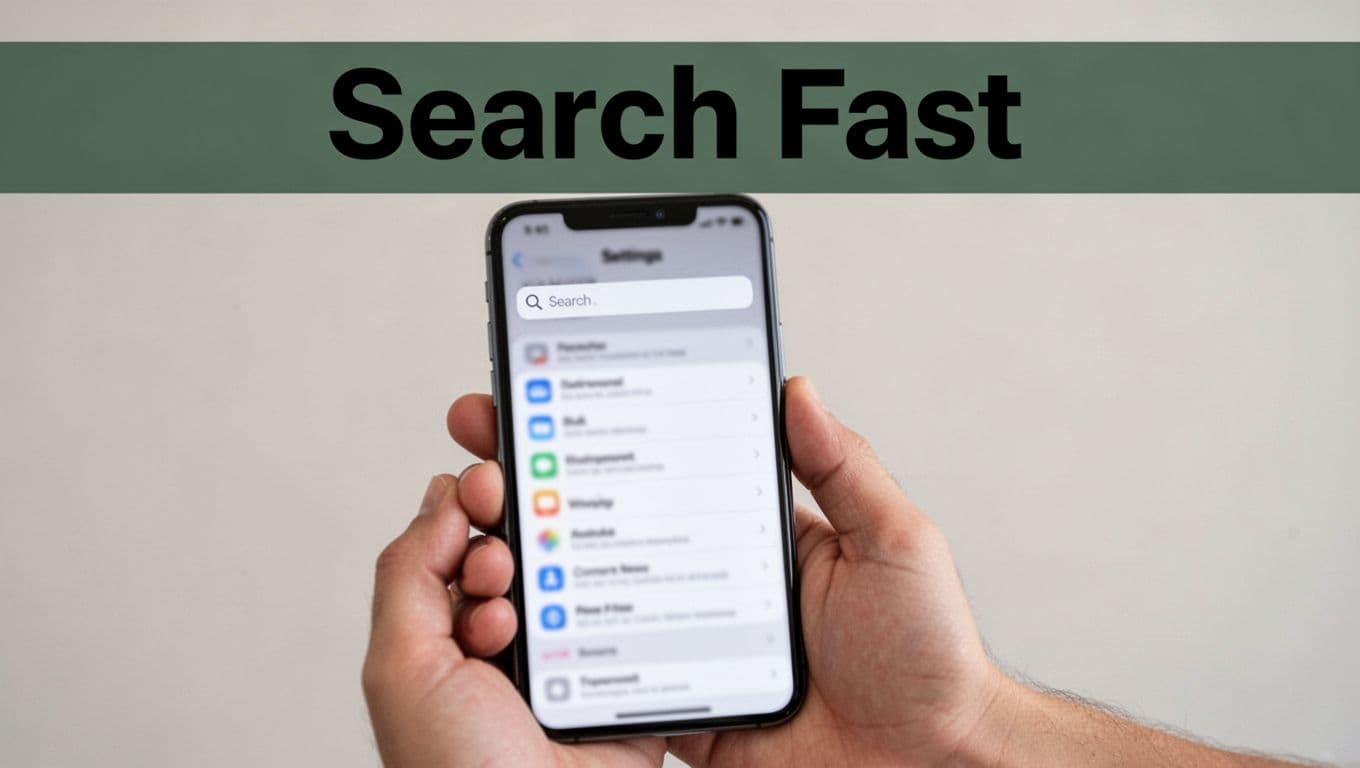
This trick saves minutes daily. For example, search notifications to tweak alerts fast. Or Wi-Fi for network tweaks. Android predicts your next searches over time. iOS suggests recent ones. Practice it now. Your phone feels faster already.
Adjust Display and Battery for Comfort All Day Long
Your screen blasts bright light all day. It strains your eyes and guzzles battery. Simple changes to display and power settings make a big difference. You stay comfortable from morning coffee to late-night scrolls. These tweaks work on Android 16 and iOS 26. They cut glare, save juice, and feel natural. Best part? You set them once and forget.
Dark Mode and Brightness Hacks Your Eyes Will Love
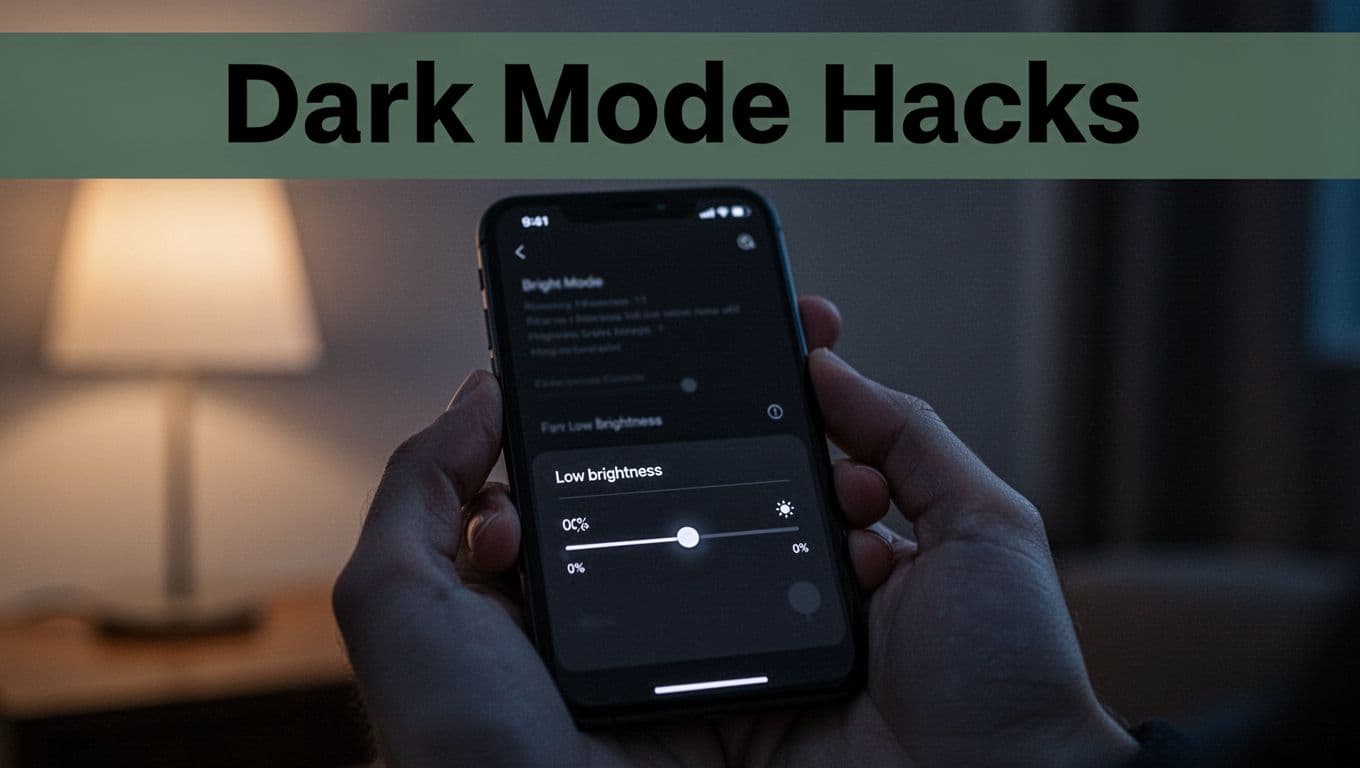
Dark Mode flips light backgrounds to black. It eases eye strain in dim rooms. Plus, it saves battery on OLED screens because black pixels stay off. Auto-brightness adjusts to your surroundings. Test it outdoors and inside to see the magic.
Start with Dark Mode. On Android, go to Settings > Display > Dark theme and toggle it on. Apps switch automatically. iOS keeps it simple too. Open Control Center, touch and hold the brightness bar, then tap the Dark Mode icon. Or use Settings > Display & Brightness > Dark. See Apple’s guide to iPhone Dark Mode for details.
Next, enable auto-brightness. Android path: Settings > Display > Adaptive brightness (turn on). It learns your habits over time. iOS: Settings > Display & Brightness > Auto-Brightness. Swipe down for Control Center to tweak on the fly.
Android adds 1-Hand Mode for easy reach. Swipe down from the bottom gesture bar or go to Settings > System > Gestures > One-handed mode. The screen shrinks for thumb access. iOS uses Reachability: double-tap home button or swipe down on the bottom edge.
In low light, these save up to 30% more battery. Walk from sun to shade. Your screen adapts instantly. Eyes thank you by evening.
Battery Saver Modes That Actually Work
Battery dies mid-day? Saver modes kick in to stretch it. They limit background tasks without much hassle. Android leads with smart AI. iOS focuses on quick toggles.
Turn on Battery Saver first. Android: Settings > Battery > Battery Saver > Turn on now (or schedule for low levels). It dims screen and slows performance. iOS calls it Low Power Mode: Settings > Battery > Low Power Mode, or add to Control Center. Tap the battery icon there.
Adaptive Battery shines on Android. Go to Settings > Battery > Adaptive Battery > Use Adaptive Battery. AI predicts app use and pauses the rest. It learns in weeks. Check Google’s Pixel battery tips to optimize further.
Schedule them both. Android lets you set times: Battery > Battery Saver > Schedule. iOS ties Low Power Mode to Focus schedules in Settings > Focus.
Watch for downsides. Performance dips, so animations slow. Background apps pause; replies delay in video calls. Limit it to under 20% battery. Close unused apps manually too.
Result? Full day on one charge. Test during your commute. Phone lasts longer, and you stress less.
Silence the Noise: Control Notifications and Stay Focused
Notifications ping constantly. They pull you from work or sleep. You can silence most with Do Not Disturb and Focus modes. These tools let key alerts through while blocking the rest. As a result, you stay productive and rested. Android and iOS make setup simple. Start today for fewer distractions.
Set Up Do Not Disturb for Peaceful Moments
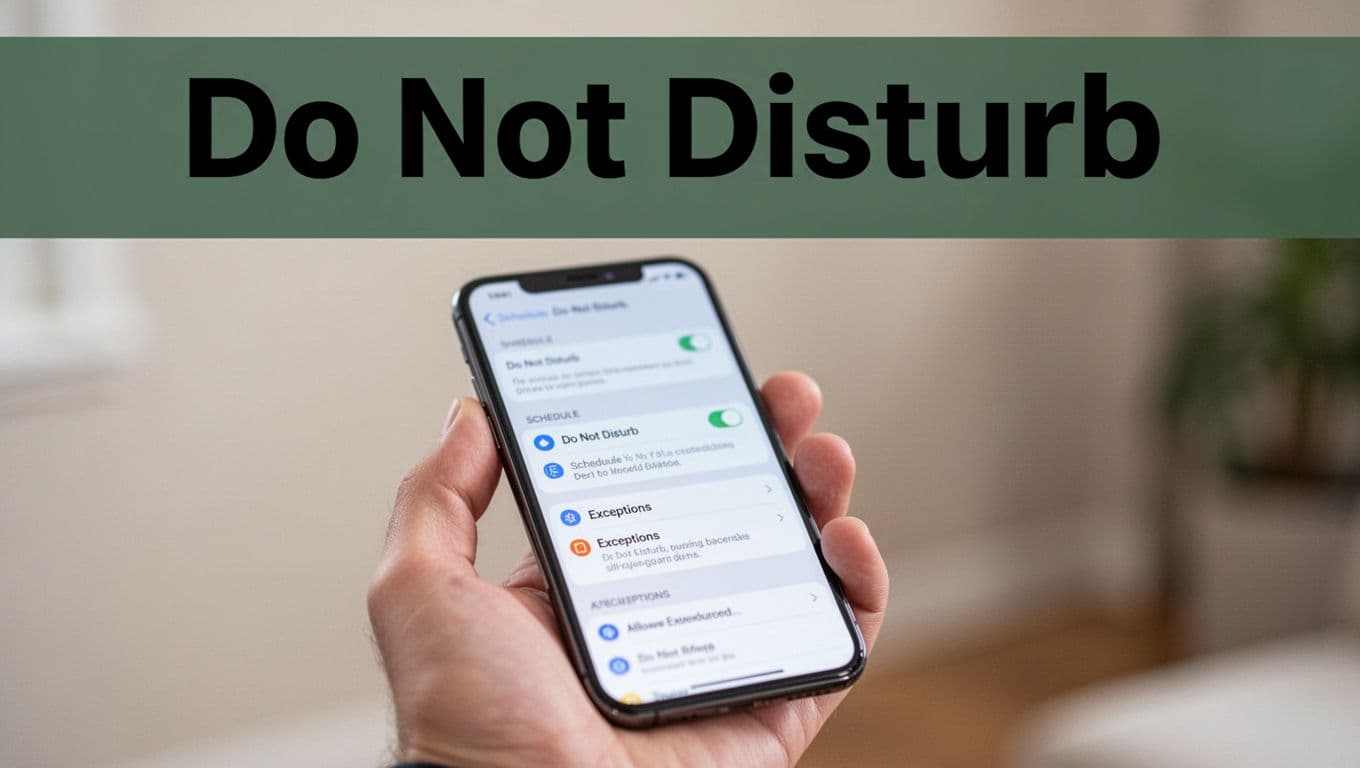
Do Not Disturb silences calls, texts, and apps during set times. You pick exceptions like favorites. Schedule it for bedtime or meetings. This keeps peace without missing emergencies.
On Android, go to Settings > Sound & vibration > Do Not Disturb. Tap People to allow calls or texts from stars only. Next, select Apps for priority ones like alarms. Then set schedules: People > Schedules > Add schedule. Choose sleep hours, say 10 PM to 7 AM. Turn on auto-silence for repeat callers too. Android 16 now syncs this across your devices, so your tablet quiets with your phone. See Asurion’s Android DND guide for visuals.
iOS uses Focus as its DND. Open Settings > Focus > Do Not Disturb. Allow people: Tap People > Add favorites. Apps work the same way. Schedule via Add Schedule. Link it to sleep or work hours. It filters notifications smartly.
Add tiles to Quick Settings on Android. Swipe down twice, edit tiles, drag Do Not Disturb up. Tap to toggle fast. Test it tonight. Your sleep improves right away.
Focus Modes to Block Distractions During Work
Focus modes pause distracting apps during tasks. Android calls it Focus Mode in Digital Wellbeing. iOS builds it into Focus. Both block social media pings so you finish work faster.
Android path: Settings > Digital Wellbeing & parental controls > Focus mode. Pick apps to pause, like Instagram or email. Set a timer, say 2 hours. It grays them out. Notification channels help too: Long-press an app’s alert > Details > Turn off categories like promotions. Android 16 adds AI summaries for grouped alerts, so you skim fast later.
iOS mirrors this. Go to Settings > Focus > Work (or create one). Silence all but allowed apps and contacts. Schedule for office hours. It changes your home screen too, hiding extra icons. Check Apple’s Focus notification tips for people exceptions.
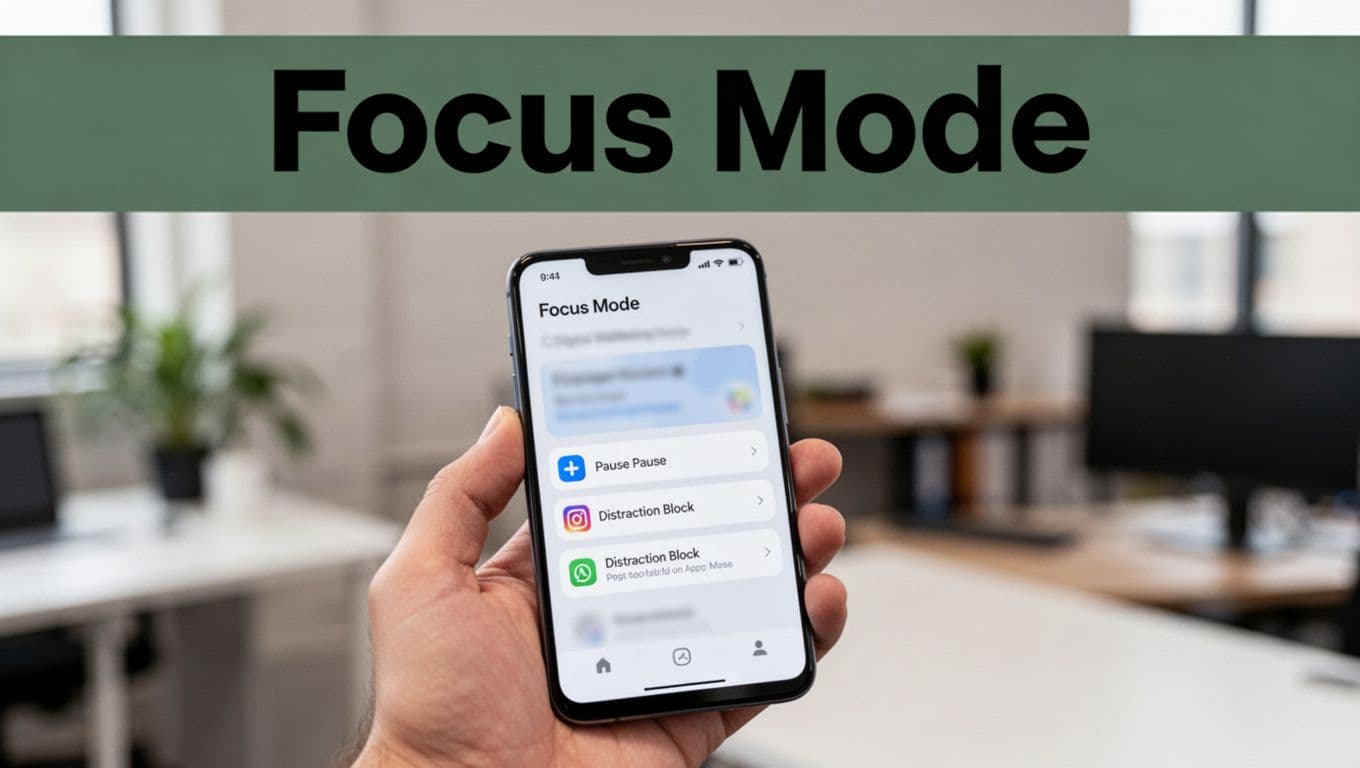
Customize further on Android. In Digital Wellbeing, set app timers. It nudges you after limits. Meanwhile, iOS links Focus to calendars. You gain hours weekly. Try a morning session. Focus sharpens.
Protect Yourself: Privacy and Security Basics Explained
Phones store photos, messages, and bank details. Hackers target them daily. You can block most threats with biometrics, app permissions, and tracking limits. These settings work fast on Android 16 and iOS 26. They add locks without slowing you down. First, set up secure access. Then control what apps see. You gain peace of mind right away.
Biometrics and Smart Lock for Easy Secure Access
Biometrics use your fingerprint or face to unlock. They beat PINs because no one guesses your print. Android 16 speeds this up with screen-off fingerprint on Pixels. iOS Face ID stays reliable in most light. Start by setting a strong PIN or password first. It backs up biometrics if needed.
On Android, go to Settings > Security & privacy > Device unlock > Fingerprint. Tap Add fingerprint. Follow the on-screen scan. Lift and replace your finger for full coverage. Next, add Face Unlock in the same menu. Hold the phone at eye level. It maps your face in seconds. Enable Smart Lock too. Find it under Device unlock > Smart Lock. Turn on trusted places like home or work. Your phone stays unlocked there. Or use trusted devices via Bluetooth.
iOS keeps it simple. Open Settings > Face ID & Passcode > Set Up Face ID. Move your head slowly as it scans. It works for apps and payments. Android 16 adds Identity Check now. It re-verifies your face if the phone detects theft risks.
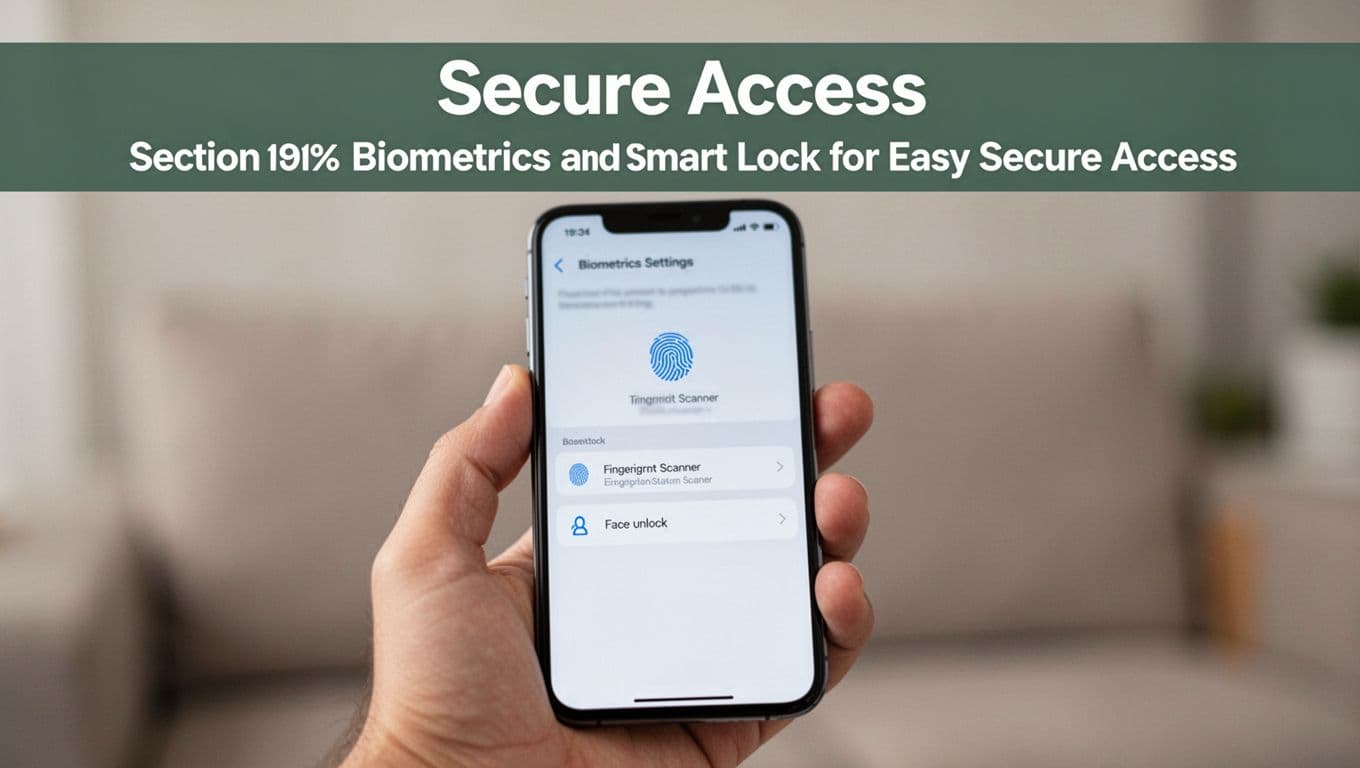
Turn on Find My Device for Android. Go to Settings > Security & privacy > Find My Device. It tracks and wipes your phone remotely. iOS has Find My in Settings > [Your Name] > Find My. Enable it for lost phones. Use a password manager like Google Password Manager or Apple’s built-in one. They generate strong codes and autofill safely. Test your setup. Lock the screen and unlock with your face. It feels quick and secure.
For detailed steps, check this Android biometric guide.
App Permissions and Ad Tracking Controls
Apps ask for camera or mic access often. Revoke what you don’t need. This stops spying without deleting apps. Android auto-resets unused permissions now. iOS shows privacy reports too. Check them weekly.
On Android, open Settings > Privacy > Permission manager. Tap Camera. See apps with access. Revoke for ones like games. Do the same for Microphone and Location. Turn on Auto-reset permissions. It cuts old access automatically. Disable personalized ads next. Go to Settings > Privacy > Ads > Delete advertising ID. Opt out of tracking.
iOS paths differ slightly. Go to Settings > Privacy & Security > App Privacy Report (turn on first). Review mic and camera use. Or check per app: Settings > [App Name] > Permissions. Revoke extras. Limit ad tracking in Settings > Privacy & Security > Apple Advertising > Personalized Ads (off).
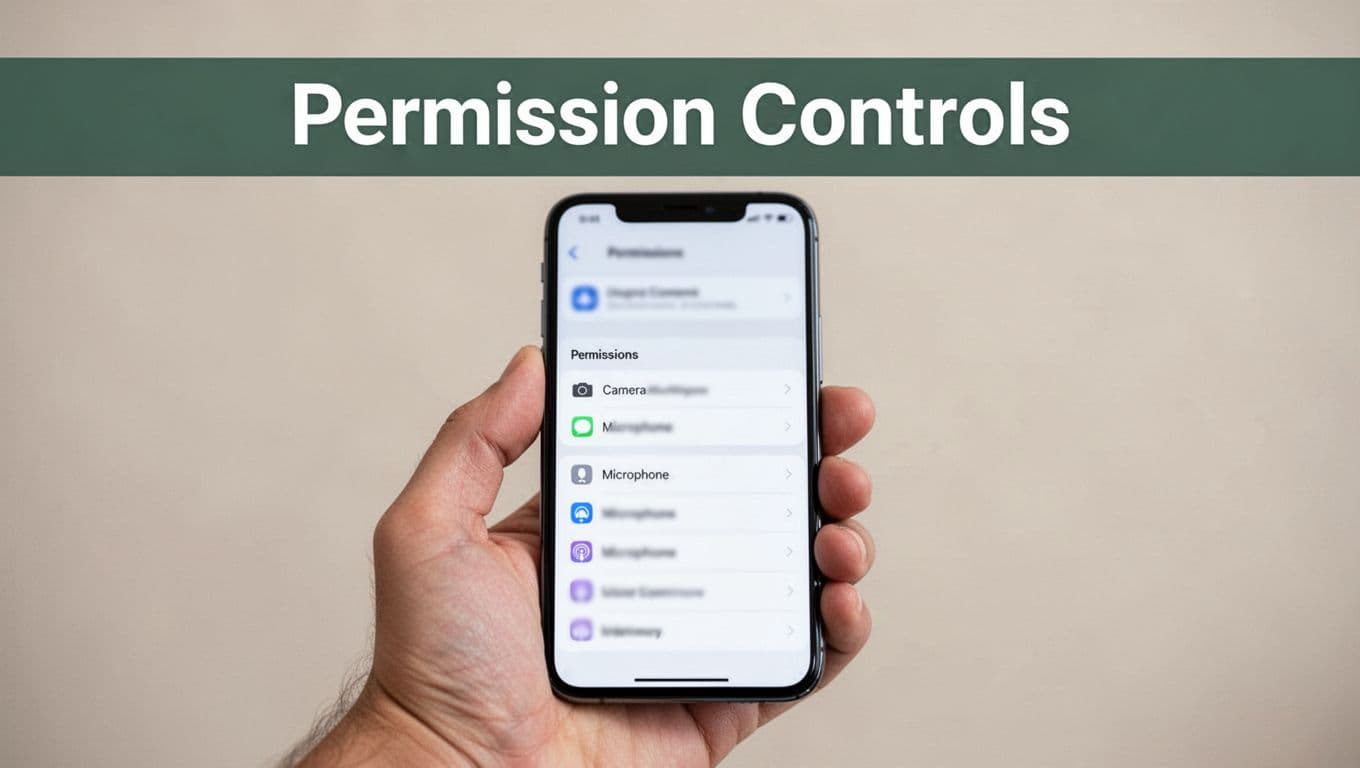
Watch for 2026 alerts on clipboard access. Android shows warnings if apps copy your data. Review permissions for social apps first. They grab mic often. As a result, your phone stays private. Fewer ads follow too. See Android’s permission overview for more controls.
Make It Yours: Home Screen, Apps, Connectivity, and Accessibility
Your phone works best when it fits your style. Tweak the home screen for quick access. Trim extra apps to speed things up. Set connectivity to connect smartly. Boost accessibility so everyone uses it easily. These changes take minutes. You gain control right away. Android 16 adds AI icon styles like Scribbles or Stardust for fun looks. iOS keeps widgets simple. Start with apps first because they clutter everything.
Manage apps to cut waste. Uninstall bloatware on Android. Long-press an app icon. Drag it to Uninstall if possible. For stubborn ones, go to Settings > Apps > See all apps. Tap the app, then Uninstall. iOS lets you offload: Settings > General > iPhone Storage. Swipe left on an app, tap Offload App. It keeps data but frees space. Turn on auto-updates too. Android: Play Store > Profile > Manage apps & device > Auto-update apps. iOS: App Store > Profile > App Updates. As a result, you stay current without manual checks.
Connectivity saves time next. Enable Wi-Fi auto-connect on both. Android: Settings > Network & internet > Internet > Saved networks. Toggle Auto-connect. iOS: Settings > Wi-Fi > Ask to Join Networks off for known spots. Picture-in-Picture (PiP) lets videos float over apps. Android: Settings > Apps > Special app access > Picture-in-picture. Allow for video apps. iOS: It works auto in Safari or FaceTime; check Settings > General > Picture in Picture. Watch a clip while texting. Your flow stays smooth.
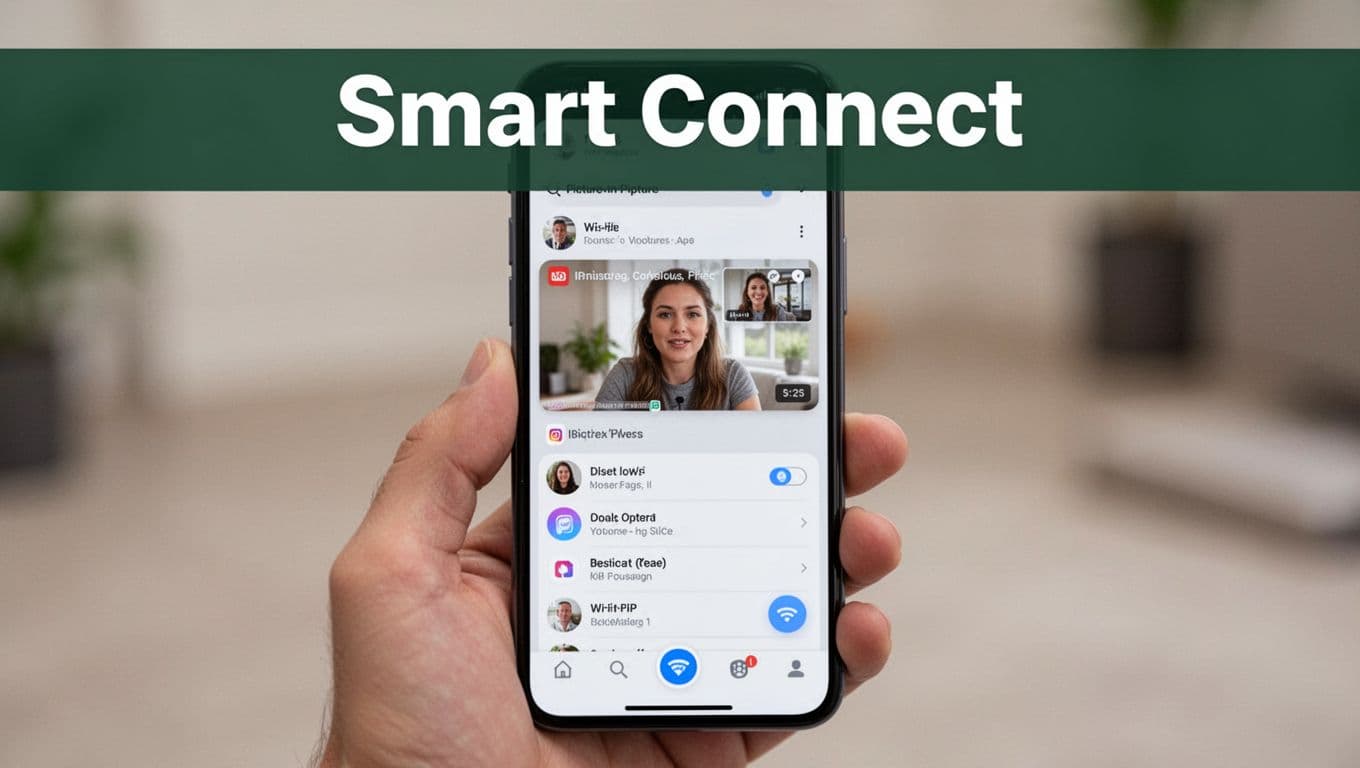
Now personalize deeper with home screen and accessibility tweaks.
Customize Your Home Screen for Less Clutter
Clutter slows you down. Limit to 10 essential apps on the main screen. Folders group the rest. Long-press works on both platforms. You edit fast.
On Android, long-press an empty spot. Tap Wallpapers & style or Home settings. Drag apps to rearrange. For folders, drag one icon over another. Name it, like “Social” or “Games”. Android 16 AI suggests icon packs. Go to home settings > Icon shape. Pick styles and apply. Essential apps first: Phone, Messages, Camera, Browser, Email. Place them front and center. Swipe left for more pages if needed.
iOS stays simple. Long-press the home screen. Tap Edit Home Screen. Icons jiggle. Drag to move. Drop one on another for a folder. Rename by tapping. Add widgets too: long-press > plus icon. See Apple’s guide to organizing apps in folders for tips.
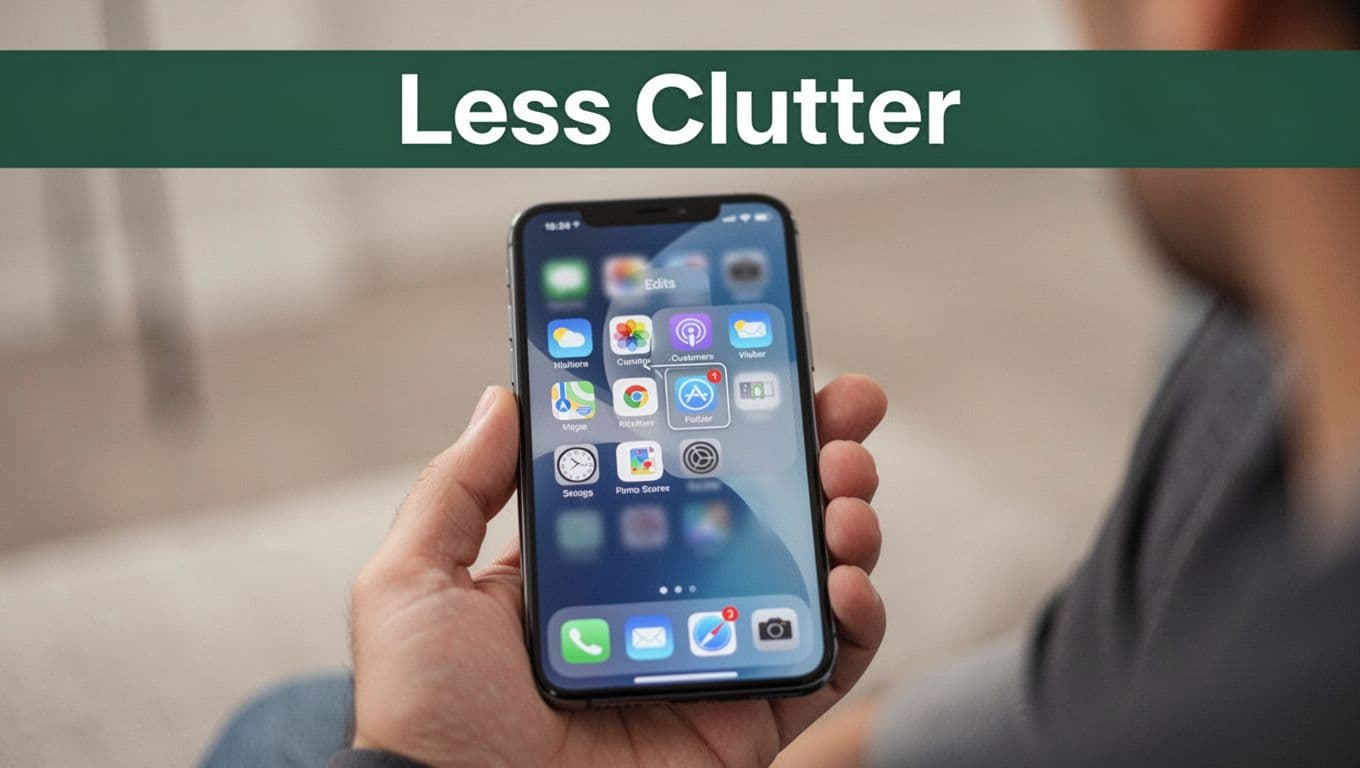
Keep it minimal. Remove extras by dragging to the top (iOS) or long-press Uninstall (Android). Folders open with a zoom on Android now. Test it. Your screen breathes easier. Find apps faster every day.
Easy Accessibility Tweaks for Everyone
Accessibility helps all users. Bigger fonts ease reading. Live Captions add subtitles. Voice feedback reads screens aloud. Toggle them quickly.
Boost font size first. Android: Settings > Accessibility > Font size and style. Slide the bar bigger. Preview changes live. iOS: Settings > Display & Brightness > Text Size. Drag the slider. Enable Bold Text too for clarity.
Live Captions shine on Android. Go to Settings > Accessibility > Live Caption. Turn it on. Download language packs over Wi-Fi. It captions videos and calls offline. Check Google’s Live Caption guide for setup.
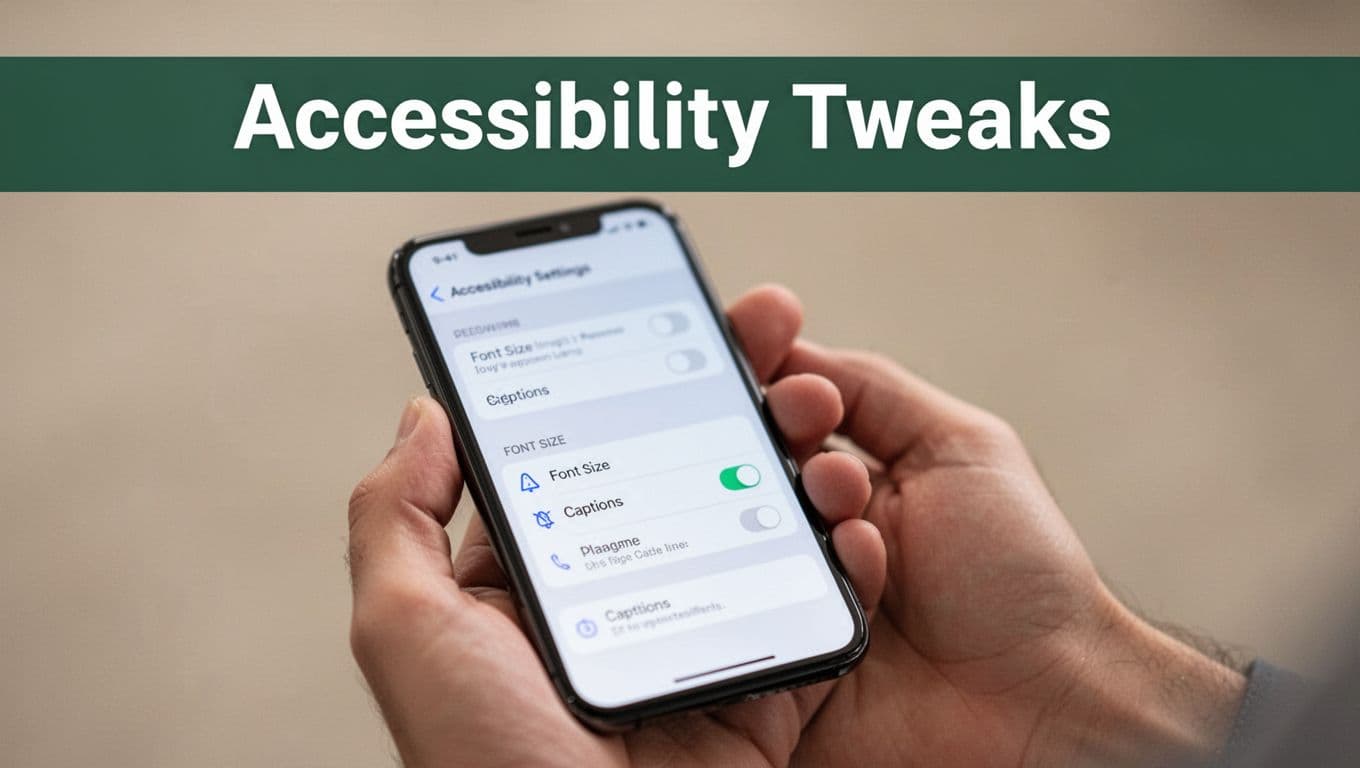
Voice tools next. Android’s TalkBack: Settings > Accessibility > TalkBack > Use TalkBack. Swipe or tap to hear descriptions. iOS VoiceOver: Settings > Accessibility > VoiceOver > On. Double-tap to select. Practice in a safe spot. Turn off when done. These tweaks make your phone inclusive. Everyone benefits, so share the steps.
Try These Exciting 2026 Features to Level Up Your Phone
Android 16 brings fresh tools in 2026 that predict your needs and boost speed. iOS matches some with smart summaries and clean alerts. You enable them in settings for smoother days. These updates cut clutter and add smarts without hassle. Start small. Your phone adapts faster as you go.
Enable Adaptive Settings for Routine Predictions
Adaptive settings learn your habits. They adjust screen refresh rates based on what you do. For example, videos run smoother while saving battery during scrolls.
Go to Settings > Display > Adaptive refresh rate on Android. Turn it on. It picks rates like 1-120Hz automatically. Notifications get live updates too. They track rides or deliveries without app opens. Check Battery > Adaptive Battery for app predictions. It pauses unused ones.
iOS parallels this with auto-brightness and notification summaries. Settings > Display & Brightness handles it. Meanwhile, AI groups alerts smartly.
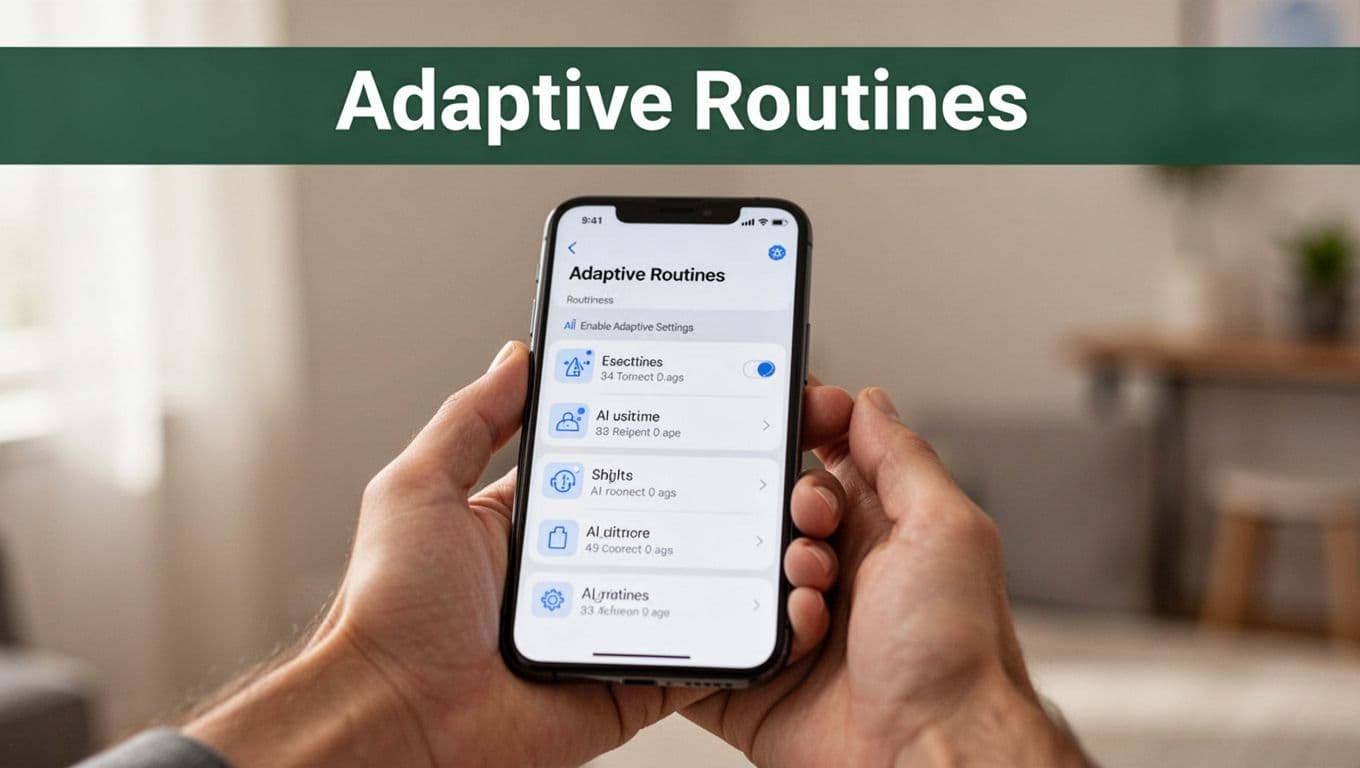
Test during your commute. Phone anticipates needs. Battery lasts longer because it matches your routine.
Master Triple-App Multitasking Like a Pro
Run three apps at once with desktop windowing. Resize and group them on larger screens or foldables. It feels like a mini computer.
Open Settings > System > Multiple displays or Gestures > Desktop mode. Enable it. Drag from recent apps to snap windows. Use taskbar overflow for quick switches. Add keyboard shortcuts if you pair a Bluetooth one.
iOS sticks to Stage Manager on iPads, but iPhones get app pairs in recent updates. Still, Android leads here for phones.
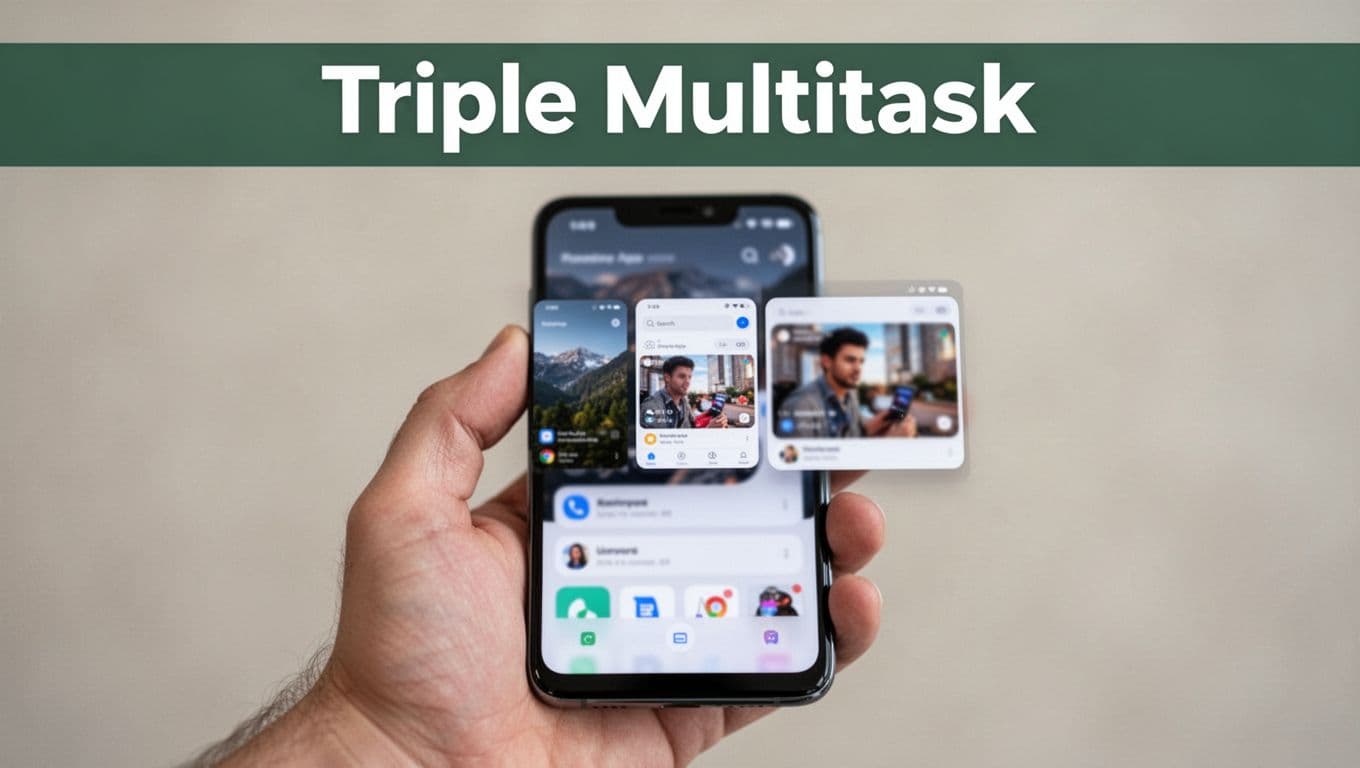
Work on email, notes, and browser together. Productivity jumps. Practice on a big screen first.
Unlock 0.5x Speed Boost in Developer Options
Developer options hide tweaks for snappier feel. Set animations to 0.5x speed. Apps open quicker without lag.
Tap Settings > About phone > Build number seven times. Enter your PIN. Now find Developer options in main Settings. Go to Drawing > Animator duration scale, Transition animation scale, Window animation scale. Set each to 0.5x.
iOS lacks this, but Accessibility > Motion > Reduce Motion speeds things up similarly. See Android 16 features explained for more dev tips.
Caution rules here. Experiment safely. Turn off if issues pop up. Restart to reset.
Trends to Watch: AI Personalization, Minimal Screens, Privacy Smarts
AI personalizes notifications with summaries. Long chats shrink to key points. Minimal screens auto-group alerts into pills. No more clutter.
Privacy adds scam blocks and safety checks. Set timers; it shares location if you miss check-ins.
Both platforms trend this way. Android’s Advanced Protection taps one button for max security. iOS mirrors with summaries.
Dip in gradually. Update first. These make your phone proactive. You save time daily.
Conclusion
You now hold the keys to a smoother phone experience. Tweaks boost battery life, quiet distractions, lock down security, and add personal touches that fit your day.
Start small today. Pick one section, like battery saver or Do Not Disturb, and apply it right now. Your phone works harder for you as a result.
Share your wins in the comments. Which tweak saved your battery most? Subscribe for more tips on Android 16 and iOS 26 updates. Simple settings turn chaos into control.