Imagine this. You get a text from your bank asking for a login code. You reply, and suddenly your accounts vanish. In early 2026, SIM swapping scams like this hit US users hard, with hackers tricking carriers like Verizon or AT&T to steal your number.
Your phone stores everything: bank details, family photos, emails. Android saw malware jump 50% from last year, thanks to fake apps and AI tricks that dodge scanners. iOS faces ransomware locking your files. Hackers love these targets because one breach empties wallets fast.
You don’t need tech genius skills. This guide shares simple steps for Android and iOS. Start with built-in tools, then add habits that work. Let’s lock down your phone right now.
Set Up Your Phone’s Built-In Shields for Quick Wins
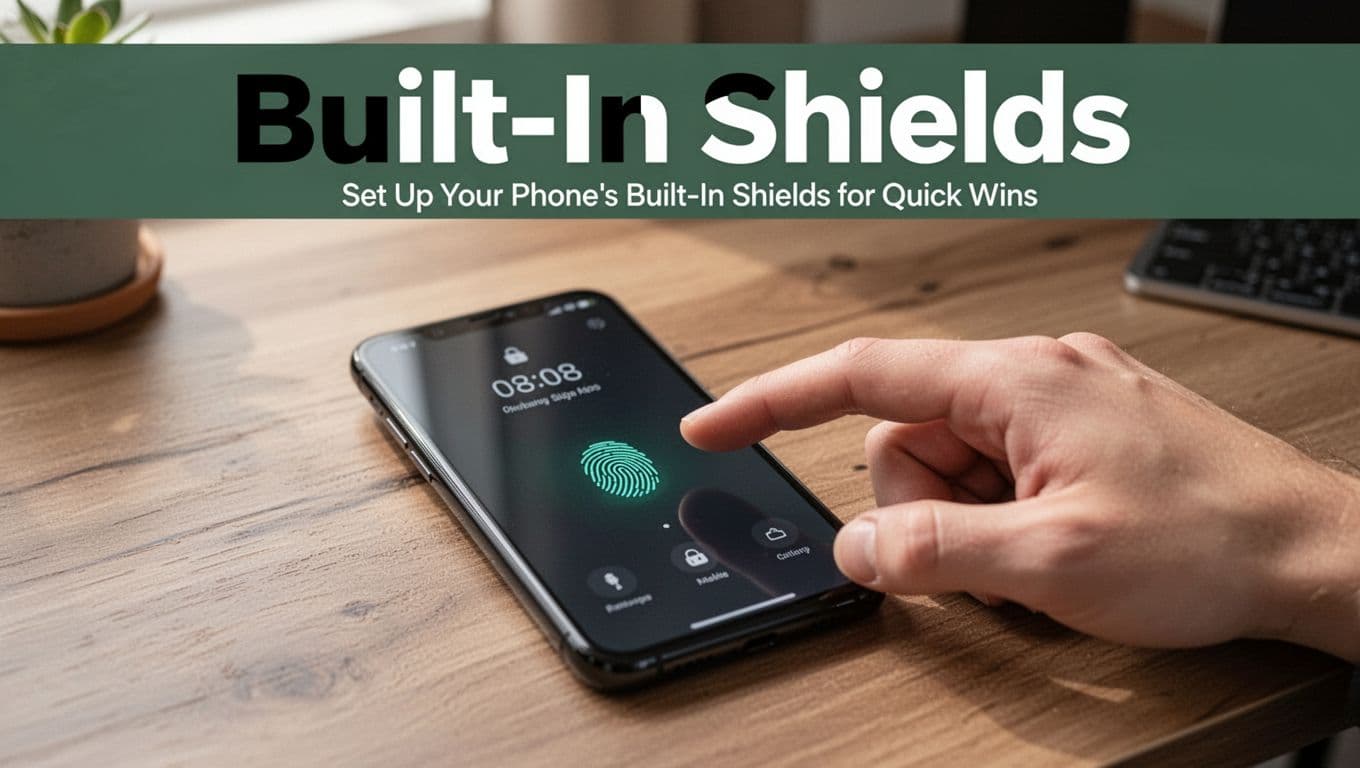
Your phone comes ready to fight back. Turn on these native features first. They block most basic attacks without extra downloads.
Biometrics pair best with strong locks. Set a PIN or password of at least 12 characters. Mix uppercase, lowercase, numbers, and symbols. Avoid birthdays or “password123.” Reuse across sites? Stop that now; it lets one breach spread everywhere.
Choose Strong Locks and Add Extra Layers
Go to settings on Android: Security > Screen lock. Pick PIN or password, then add fingerprint or face unlock as backup. iOS users head to Face ID & Passcode or Touch ID & Passcode.
Next, enable two-factor authentication everywhere, especially email and banking. Skip SMS; hackers grab those via SIM swaps. Use apps like Google Authenticator instead. For example, a scammer calls your carrier pretending to be you. They port your number and snag codes. App-based 2FA stops that cold. See Malwarebytes’ guide on preventing SIM swaps for carrier PIN setup tips.
Set auto-lock to 30 seconds max. This wipes idle screens fast if you step away.
Never Skip Those Update Notifications
Updates patch holes hackers exploit. Android’s March 2026 patch fixed over 100 flaws, including one under active attack. Old versions like Android 12 invite RATs that log keys and steal screens.
On Android, open Google Play > Profile > Settings > Network preferences > Auto-update apps. Toggle over any network. Check OS updates in Settings > System > System update.
iOS does it automatically mostly. Go to Settings > General > Software Update. Turn on Automatic Updates. Quarterly, review app updates too. These close doors to AI malware that hides and adapts.
In short, updates act as your first shield. Ignore them, and risks skyrocket.
Download Apps and Tools That Actually Keep You Safe
Official stores cut most risks. Google Play and Apple App Store scan for malware. Skip APK files from websites; they pack trojans like ClayRat that spam contacts and grab photos.
Review permissions often. Apps don’t need camera access for weather checks.
Stick to Official Stores and Vet Permissions
Before install, check developer ratings and reviews. Search the name online for scam reports. On Android, enable Play Protect in Play Store settings; it scans apps live.
Then audit permissions: Android Settings > Apps > Permissions. Revoke location for note apps. iOS: Settings > Privacy & Security. Toggle off mic for games. Do this quarterly. Unneeded access lets malware spy quietly.
Pick the Best Antivirus for Your Phone
Built-in tools help, but extras catch more. Android’s Play Protect misses some; pair it with tested apps.
Bitdefender Mobile leads with 99.9% detection and low battery hit. Malwarebytes free tier blocks ransomware well. AVG suits basics. iOS limits full scans, so focus on web protection.
| App | Best For | Android/iOS | Free Tier? |
|---|---|---|---|
| Bitdefender | Top detection | Both | Limited |
| Malwarebytes | Ransomware block | Both | Yes |
| AVG | Easy scans | Both | Yes |
Install from stores, run weekly scans. Check Security.org’s 2026 Android antivirus tests for scores. These tools stop fake apps before install.
Build Habits That Block Hackers Online Every Day
Daily choices matter most. Phishing texts mimic banks with urgent demands. AI makes them sound real now.
Public Wi-Fi? Hackers snoop traffic. VPN encrypts it.
Spot and Skip Phishing Traps and Bad Links
Watch for odd senders, misspellings, or “act now” pressure. Hover links; fake banks use “bannk.com.” Verify in official apps or call numbers from statements.
Delete unknowns. Forward suspects to FTC at 7726. This habit dodges 90% of scams.
Secure Public Wi-Fi and Your Password Game
On coffee shop nets, fire up a VPN for banking. PCMag’s top VPN picks for 2026 rate speed and privacy.
Use a password manager like Android’s built-in or iOS Keychain. Generate unique 16-character strings per site. No more “emailpass1” repeats. Auto-fill saves time too.
These routines turn you into a hard target.
Handle Physical Risks and Sneaky Hacker Tricks
Thieves grab phones for data, not just hardware. Cases and tracking help.
Signs of trouble: sudden outages, odd battery drain, unknown apps.
Protect Your Phone from Theft and Loss
Use a sturdy case. Never leave it unattended. Enable Android’s Find My Device or iOS Find My. Log in remotely to lock or wipe.
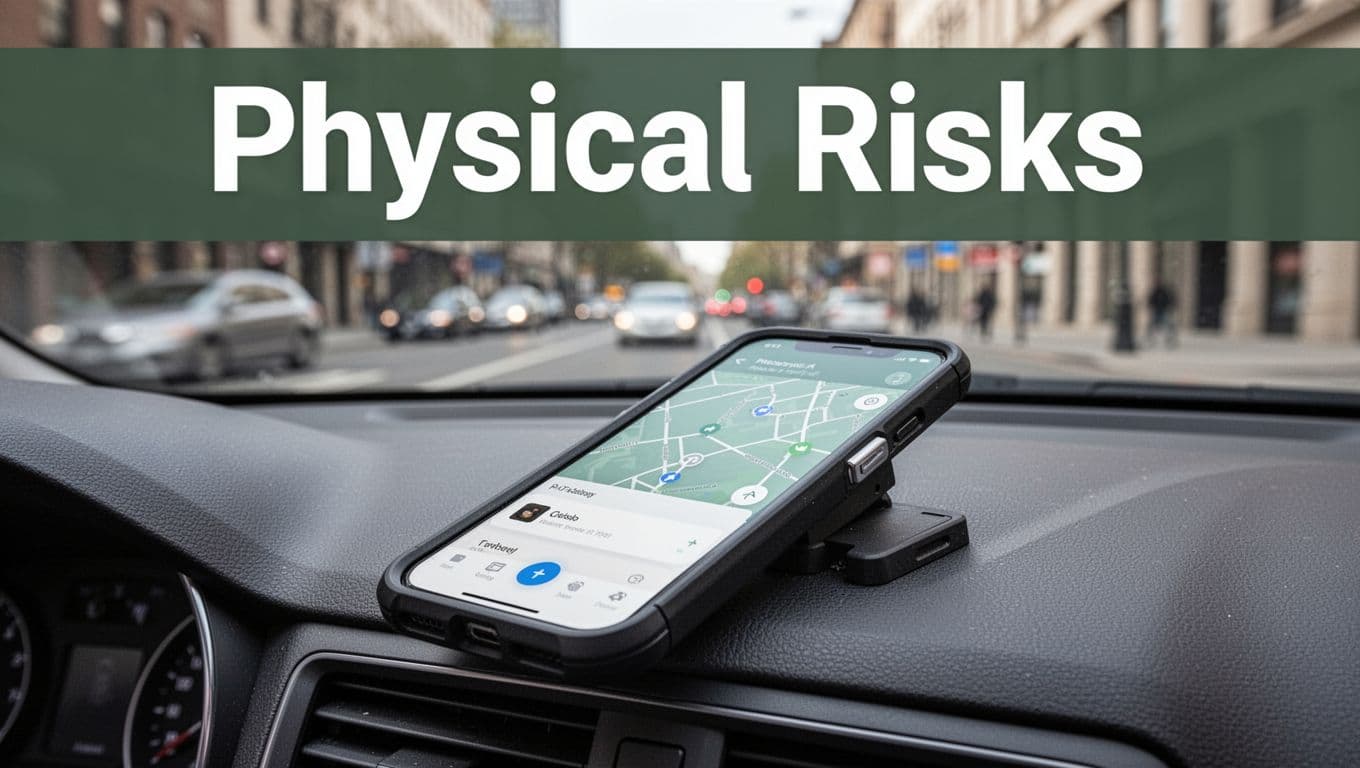
In cars, tuck it in mounts or glove boxes. If lost, change passwords fast from another device.
Know the Top Hacker Moves to Shut Down
SIM swaps top the list; lock carrier accounts. Phishing via texts? Verify first. Malware from sideloads? Stick to stores.
Spot infection? Run scans, boot safe mode, reset if needed. Act quick to limit damage.
Strong locks, updates, and scans stop these cold.
Your phone stays safe with these steps. Prioritize updates and 2FA today; they block most threats. Check one setting now, like auto-lock.
Share your best tip in comments. Stay secure out there. Hackers lose when you’re prepared.