You check your phone bill and spot that nasty overage fee again. Or maybe you watch the data bar plummet while scrolling TikTok on your commute. In March 2026, smartphones in the US chew through 20 to 29 GB per month on average because apps push HD videos and constant updates.
Bigger screens and AI features make it worse on both Android and iOS. You don’t need to ditch streaming or social media. These steps cut usage by up to 50% with simple taps.
We’ll cover turning on data saver mode first. Then blocking sneaky background apps, sticking to Wi-Fi, and hunting data hogs. Start with one tip today. You’ll save data and cash right away.
Flip the Switch on Your Phone’s Data Saver Mode
Data saver mode delivers the quickest win. It blocks background data and compresses content across your phone. Turn it on, and you’ll see results in hours.
On Android, open Settings. Tap Network & Internet, then Data Saver. Toggle it on. Android restricts apps from using data when you aren’t looking. It also shrinks images and web pages.
iOS users go to Settings, then Cellular. Scroll to Cellular Data Options. Pick Low Data Mode. This pauses automatic updates and lowers video quality.
Both modes work great in 2026. They save battery too because fewer processes run. For example, Google reports it cuts mobile data without killing your experience. Check Google’s Data Saver guide for Pixel details, but steps match most Androids.
You can allow key apps like WhatsApp through the block. Just add them to the unrestricted list in settings. This keeps messages flowing while starving others.
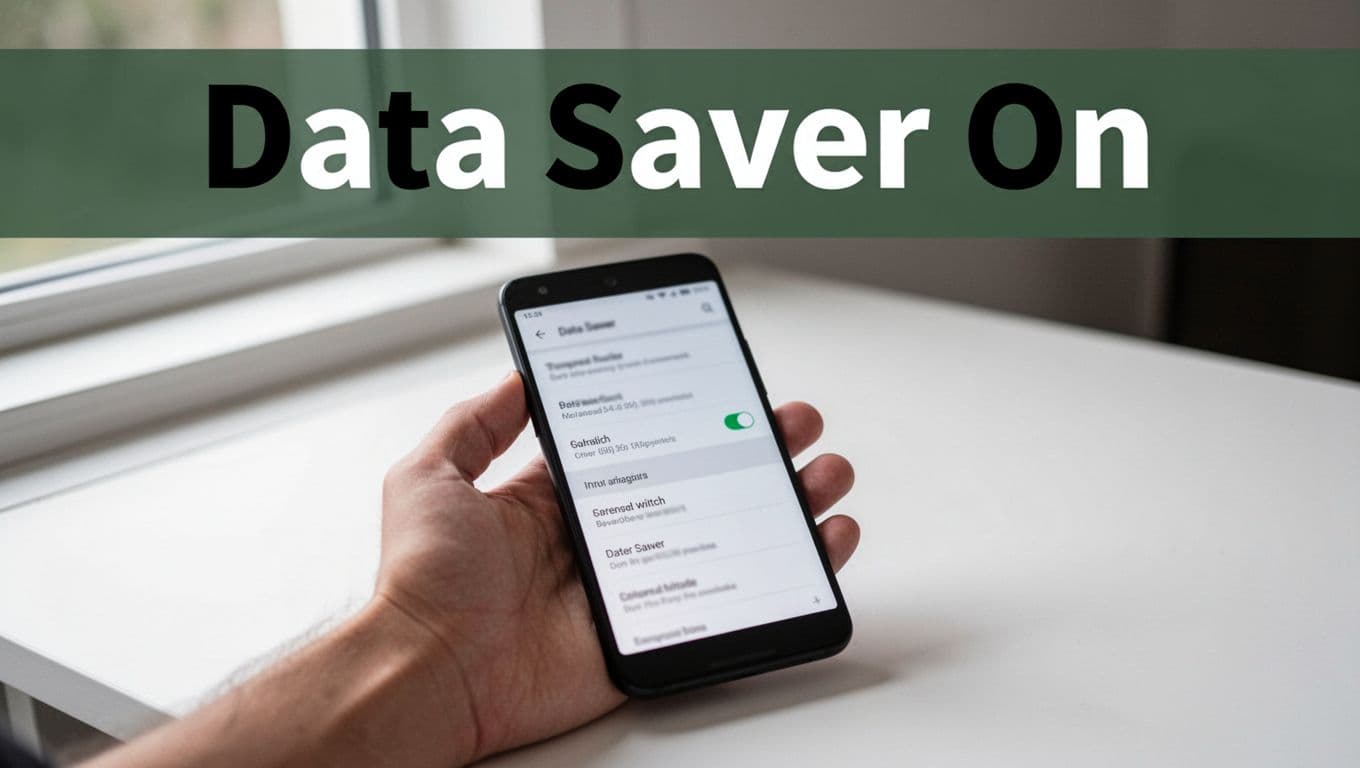
Test it during your next commute. Pages load a bit slower, but data drops fast. Most users save 30% or more right away. Turn it off at home on Wi-Fi if needed.
How Data Saver Changes App Behavior
Data saver makes apps smarter about data. Videos switch to low quality automatically. They buffer less and use half the bandwidth.
Background sync stops for most apps. Email checks only when you open it. Social feeds refresh on demand.
Android lets you tweak more. iOS focuses on cellular only. Yet both pause downloads until Wi-Fi hits.
Exceptions stay open. You pick maps or calls to run free. Apps feel snappier overall because resources focus upfront.
In short, it tames greed without full cuts. Combine with other tips for max savings.
Block Background Data from Sneaky Apps
Apps love to sip data in the background. Email pings servers. Social media refreshes feeds. Cloud backups run silent.
This eats gigabytes fast. Stop it now. You’ll reclaim control.
First, check your usage stats. Android: Settings > Network & Internet > Data usage. iOS: Settings > Cellular. Spot the top offenders.
For Android, pick an app. Go to Settings > Apps > select it > Mobile Data & Wi-Fi. Turn off Background Data.
iOS differs a bit. Head to Settings > General > Background App Refresh. Set to Off or Wi-Fi only. Or toggle per app under Cellular.
Top culprits include Facebook and Gmail. They sync constantly. Instagram loads stories even closed.
One user cut 40% by blocking these. See how to restrict data for specific apps for full steps.
Don’t forget to review monthly. Apps update and change habits. Revoke access for unused ones too.
Background blocks pair well with data saver. Together, they slash idle waste. Your phone stays responsive on screen.
Top Data-Hungry Apps to Target First
WhatsApp auto-downloads media. It grabs photos and videos instantly. Switch to manual in app settings.
Spotify streams high quality by default. Set downloads to Wi-Fi only. YouTube buffers HD clips too. Cap it at standard.
Email clients like Gmail fetch attachments. Turn off images until you tap. Netflix or TikTok? Restrict unless essential.
Recent stats show these top the list. Check popular apps chewing through data for 2026 rankings.
Target three first. Restrict, don’t delete. Test for a week. Adjust as needed.
Prioritize Wi-Fi and Stop Auto-Downloads Cold
Wi-Fi saves data every time. Use it for big tasks like updates or streaming. Switch manually when available.
Home or work networks work best. Coffee shops too, if secure. Your phone connects faster there anyway.
Disable auto-updates now. On Android, open Google Play. Tap your profile > Settings > Network preferences > Auto-update apps > Over Wi-Fi only.
iOS: App Store > your profile > App Updates off. Or iCloud Backup to Wi-Fi only.
Messaging apps burn data on media. In WhatsApp, go to Settings > Storage and Data > Media auto-download > Never on mobile.
Telegram matches this. Set downloads manual. Savings add up quick on limited plans.
Download playlists or maps ahead on Wi-Fi. Stream low quality elsewhere. Habits like these keep you under cap.
Tweak Streaming and Music Apps for Less Data
Spotify and Apple Music download podcasts auto. Turn that off in settings. Pick offline listening instead.
YouTube lets you choose quality. Set default to 480p. Netflix offers data saver in playback.
Lower bitrates halve usage. Buffer once, play anywhere. Podcasts download overnight on Wi-Fi.
These changes feel seamless. You keep content, lose no joy. Data stays yours.
Hunt Down Data Hogs and Set Smart Limits
Know your usage first. Android shows details in Settings > Network & Internet > Mobile network > App data usage.
iOS lists it under Settings > Cellular. Sort by cycle. See patterns over weeks.
Restrict big users. Repeat background blocks here. Delete bloat if unused.
Set limits too. Android: Data usage > Set data warning or limit. It alerts at 80%, shuts off at cap.
iOS uses Low Data Mode alerts. Pair with monthly resets.
One example: Social apps took 60% last month. After tweaks, down to 20%. Track to stay ahead.
Review bills less. Sleep better.
What to Do When You Spot a Problem App
Restrict data first. Test function. Uninstall if worthless.
Replace heavies. Try lighter email like Proton. Share low-res photos in chats.
Quick wins: Clear cache weekly. Android: Settings > Apps > Storage > Clear cache.
These fix most issues. Empower yourself monthly.
Put These Tips to Work Today
Data saver on, backgrounds off, Wi-Fi first, and regular checks form your base. They cut usage big without hassle.
In 2026, with 20-29 GB averages rising, act now. Save fees and stress.
Pick one tip. Apply it today. Notice the data bar hold steady.
Share below: Which app surprised you most? What worked best? Subscribe for more phone hacks. Your wallet thanks you.