You grab your phone every day to chat with friends or family. Yet, if you’re new to smartphones or missed recent updates, simple tasks like dialing a number or sending a text can trip you up. Basics haven’t changed much, but 2026 brings handy tweaks like RCS encryption across Android and iPhone, trash recovery in Google Messages, and better call screening.
This guide walks you through making calls on a smartphone and sending messages on Android or iPhone. You’ll get clear steps for everyday use, plus fresh features such as real-time location sharing and scam detection. We cover common glitches too, so you stay connected without frustration. Follow along, and you’ll handle calls and texts like a pro.
Let’s start with calls, the core of staying in touch.
Master Making and Answering Calls in Minutes
Calls keep life moving. Open your Phone app on any smartphone, and you’re set. Android and iPhone share basics like the keypad for dialing and color-coded buttons. Green means go; red stops it. Recent calls or contacts offer quick access too.
In 2026, iOS 26 adds a unified view for favorites and recents. Android gets custom calling cards where you pick your photo and colors. Both support satellite SOS for emergencies without signal. These extras make calls smarter.
First, learn to dial out.
Dial Any Number with These Simple Steps
Making a call takes seconds. Here’s how on most phones.
- Open the Phone app from your home screen or app drawer.
- Tap the keypad icon, often at the bottom.
- Enter the number using the on-screen keys. Add +1 for US numbers if needed.
- Press the green call button to connect.
- End the call with the red button when done.
Speed things up from contacts or recent calls. Tap a name, then the phone icon. For frequent numbers, set speed dial in settings.
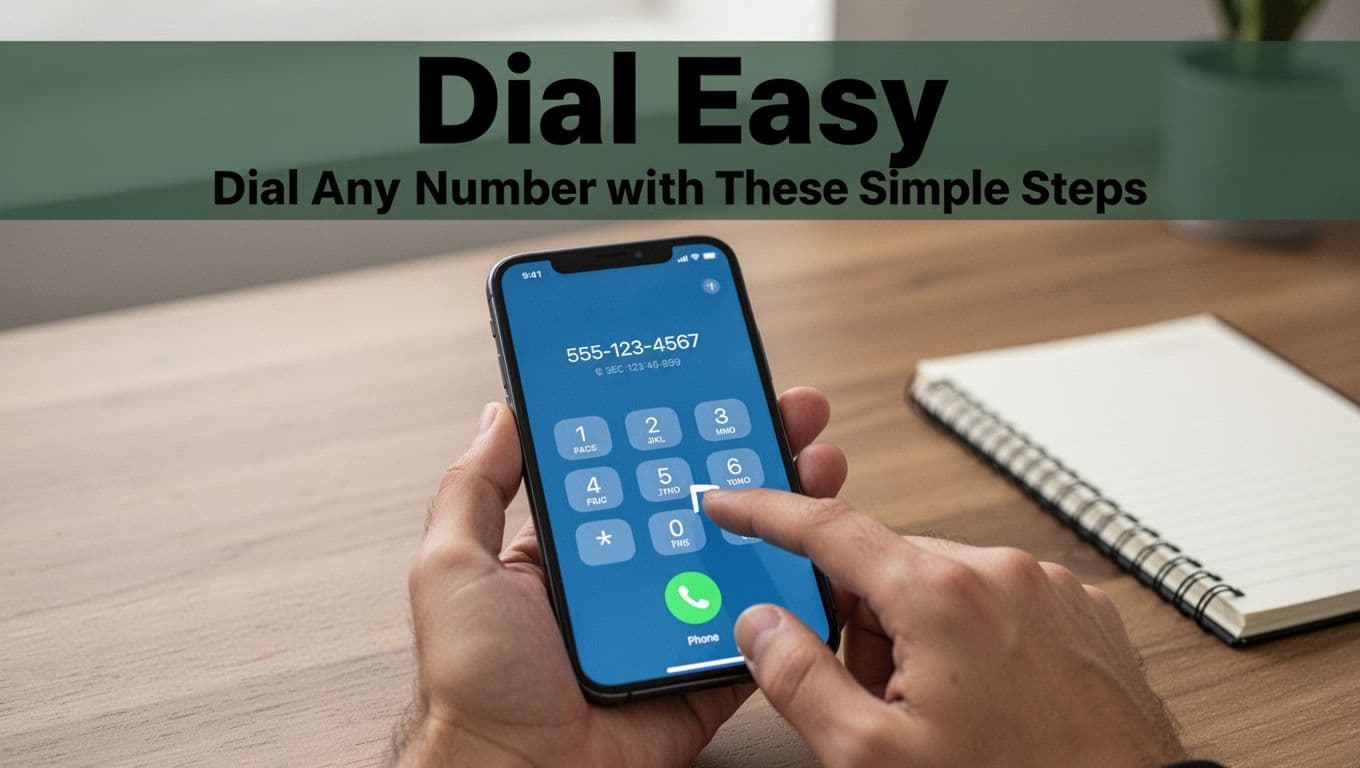
Visualize that screen glow as your finger hits green. Practice once, and it sticks.
Pick Up or Ignore Calls Without Fumble
A call rings, and your screen lights up with the name or number. Don’t panic.
On iPhone, swipe up to answer or down to decline. That sends it straight to voicemail. Android users tap the green button to pick up or red to end it.
Set up call screening for unknowns. Go to Settings > Phone > Call Screening on iOS 26. It asks callers to state their name first. Android has similar options via Google Assistant on Pixels.
Meanwhile, silence the ringer by flipping your phone face down on most devices. Simple tweaks prevent missed connections.
Sneaky Hands-Free Tricks for Busy Calls
Driving or cooking? Go hands-free without stress.
On iPhone, double-tap the bottom edge during a call to Type to Siri. Type commands instead of speaking. iOS 26 lets you share your screen on FaceTime calls or use SharePlay to watch media together.
Android shines with Google Assistant. Say “Hey Google, call Mom” anytime. For emergencies, satellite SOS on Pixel or newer Samsung auto-connects to 911 and shares your location.
These tools keep you safe and productive. Test them on a quiet call first.
Send Texts and Keep Chats Flowing Smoothly
Texts beat calls for quick notes. Open the Messages app on Android or iPhone. Both handle SMS, but RCS upgrades chats with encryption and high-quality photos.
Start a new message with the compose button: pencil on iPhone, + icon on Android. Pick a contact, type your note, and send. Replying works the same in any thread.
Group chats add fun, but keep them tidy. In 2026, RCS brings @mentions and read receipts across platforms. If enabled, you see when someone reads your text.
Now, fire off your first one.
Craft and Fire Off Your First Text Message
New to texting? Follow these steps.
- Launch the Messages app.
- Tap the compose icon (pencil or +).
- Select a contact or enter a number.
- Type your message in the bottom box.
- Hit the send arrow.
Android saves drafts automatically with Tap to Draft. Pick up where you left off. iPhone holds unsent texts too. Add emojis or photos for flair.
Send often, and habits form fast.
Handle Replies and Group Texts Like a Champ
Threads build up quick. Tap any conversation to reply. Type at the bottom and send.
In groups, type @name to ping someone on Android RCS chats. iPhone supports reactions like thumbs up. Typing indicators show when others compose.
Read receipts confirm delivery if turned on. RCS sends HD media without compression, unlike old SMS. However, both sides need RCS support.
Keep chats lively but mute noisy groups in settings.
Level Up with 2026’s Hottest Call and Text Features
Smartphones evolved in 2026. RCS now tests end-to-end encryption between Android and iPhone, marked by a lock icon. Google Messages rolls out trash recovery and scam detection.
Android leads with AI-powered spam shields on Pixels and Galaxies. iPhone bolsters calls with screening and satellite messaging. Cross-platform harmony grows.
Enable these in app settings for the win.
Android Wins: Smarter Messages and Spam Shields
Google Messages packs upgrades. Recover deleted texts from the trash folder (beta on most devices). Use @mentions in RCS groups to highlight replies.
Share live location with a map icon; friends track you real-time. Gemini AI spots scams on-device in the US and more countries. Noise-cancelled voice memos sound crisp too.
Check new Google Messages features rolling out now for your rollout status. Turn on read receipts in Settings > Messages > Advanced.
iPhone Perks: Share Screens and Screen Calls
iOS 26 unifies calls in one view for recents and favorites. Screen unknowns via Settings > Phone. It announces callers so you decide.
Satellite SOS on iPhone 13+ handles 911 texts without bars. SharePlay extends to media during calls. Save voice messages before they vanish.
Learn more at Apple’s guide to call screening. These keep iPhone users ahead.
Android-iPhone Harmony via RCS Magic
RCS bridges the gap. Chats show the lock icon for encryption in testing. HD photos, typing dots, and receipts work if carriers support it.
Fallback to SMS happens automatically. Enable in iPhone Settings > Messages and Android’s advanced options. For details, see Apple’s RCS support guide.
Mixed groups improve, but updates continue.
Quick Fixes for When Calls or Texts Go Wrong
Glitches happen. Weak signal blocks texts; outdated apps hide features. Restart your phone first, always.
Update iOS or Android for RCS fixes. Check carrier coverage too. Most issues solve quick.
Texts Stuck? Get Them Moving Again
Messages fail? Verify signal bars or Wi-Fi. Toggle airplane mode for 10 seconds.
Restart the app or phone. Out of service area? RCS needs internet; SMS works offline. Clear cache on Android via Settings > Apps > Messages.
Texts flow again soon.
Read Receipts Missing or Chats Glitchy?
No receipts? Both users enable them: Android Settings > Messages > Advanced, iPhone Settings > Messages > Send Read Receipts.
Update for RCS lock icons. Groups lag? RCS rollout varies; mute or leave if needed.
Satellite helps emergencies; see Apple’s Emergency SOS via satellite.
Master these, and you’re golden.
Calls and texts power your day. You’ve got the basics down, plus 2026 perks like RCS encryption and trash recovery. Update your apps and OS now. Enable scam detection and read receipts for smoother chats.
Try satellite SOS if you travel remote areas. Share your go-to fix in the comments. What feature surprises you most?
Smartphones make connection effortless in 2026. Stay linked.