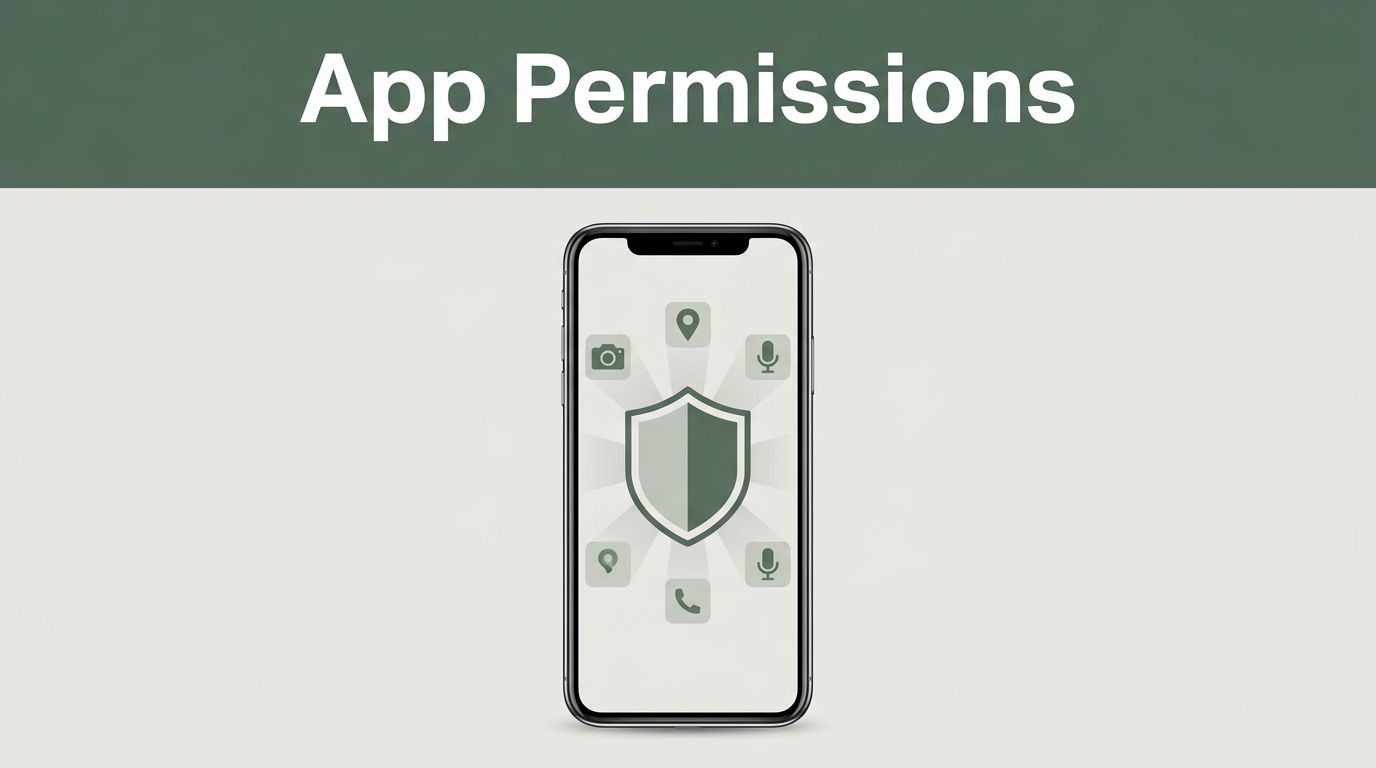
You grab your phone to check the weather. The app asks for access to your photos. Why? A flashlight app once shared your location without you knowing. That moment hits hard.
App permissions let programs tap into your camera, microphone, location, contacts, and more. They help apps work right. But loose settings open doors to data leaks and tracking. In 2026, Android 16 and iOS tighten rules for better privacy. You gain security and speed without constant worry.
This post shows you why it matters. Then, follow simple steps for Android and iOS. Pick up tips to dodge mistakes. Ready to lock things down?
Why Bother Managing Your App Permissions?
Apps grab data fast. Location shares your moves. Camera access snaps without notice. Hackers love loose contacts lists for spam. Ads follow you because one game read your emails.
Tight control fixes that. Your battery lasts longer since apps run less in back. Pop-ups drop. You sleep better knowing no weather app spies on photos. For example, deny microphone to a calculator. It still adds numbers fine.
Common types include location, camera, microphone, contacts, and photos. Android’s permission auto-reset kills old access. iOS shows Privacy Dashboard for recent uses.
In 2026, pushes grow. Android 16 adds auto-downgrades for unused apps. It blocks background tracking too. iOS sticks with labels before downloads. Both fight data sales.
Benefits stack up:
- Cut tracking across sites.
- Spot sneaky access weekly.
- Boost phone speed.
A simple check stops most risks. Check Google’s privacy dashboard guide for timelines on access.
Master App Permissions on Android in Minutes
Android puts control at your fingertips. Start in Settings. You pick per app or type. No need for extra tools. Updates in 2026 make it smarter.
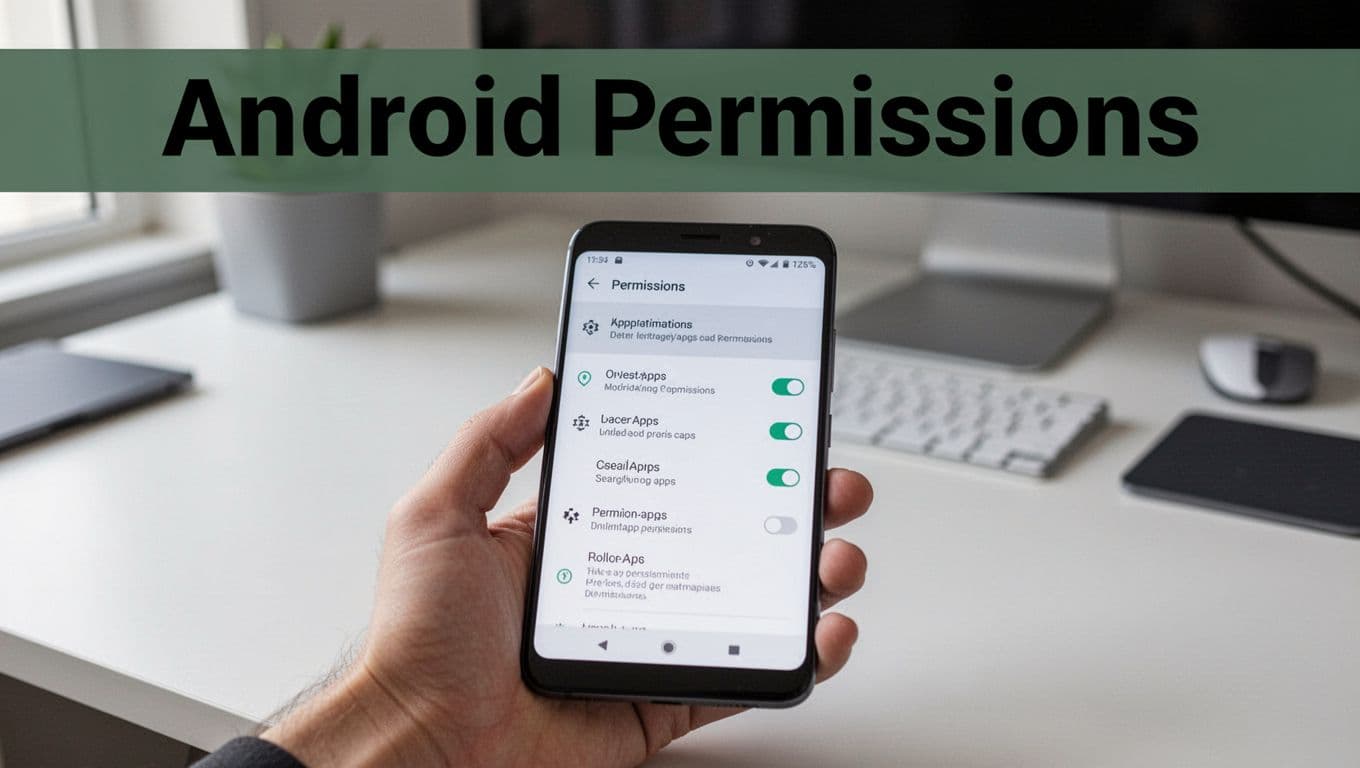
Head to Apps first. See everything installed. Tap one like Facebook. Permissions list pops up. Toggle camera off if unused. Choices include Allow only while using or Deny.
View by type too. Go Settings, Apps, then Permissions manager. Sort by location. Revoke from games that do not need it. Runtime prompts ask just in time now.
Weekly reviews keep you safe. Deny mic to photo editors. Use Ask every time for tests. Battery improves as a result.
For full steps, see Google’s official Android permissions guide.
Steps to Review and Revoke Permissions Fast
Follow these exact steps. They take under two minutes.
- Open Settings. Tap the gear icon on your home screen or app drawer.
- Select Apps. Scroll if needed.
- Tap See all apps. Pick the one to check, like a social app.
- Scroll to Permissions. It lists camera, location, and more.
- Toggle each. Choose Allow only while using, Ask every time, or Deny. For location, pick approximate if exact feels too much.
Test right after. Open the app. It prompts if denied. Adjust as needed.
Android’s New 2026 Tools for Smarter Control
Android 16 shines here. Auto permission downgrade strips access from unused apps. No action required. Background runs pause too.
Local network needs declare now. Apps ask before Wi-Fi scans. Safer intents block app tricks. Location indicator expands to show users.
Privacy Dashboard tracks last seven days. See who grabbed mic when. Real-time alerts flag background use. One-time grants let you test once.
These cut blanket approvals. You grant smartly. Phones stay fast and private.
Control Permissions Effortlessly on iOS
iOS keeps it simple. Settings hold the keys. Categories speed reviews. Per-app tweaks work too.
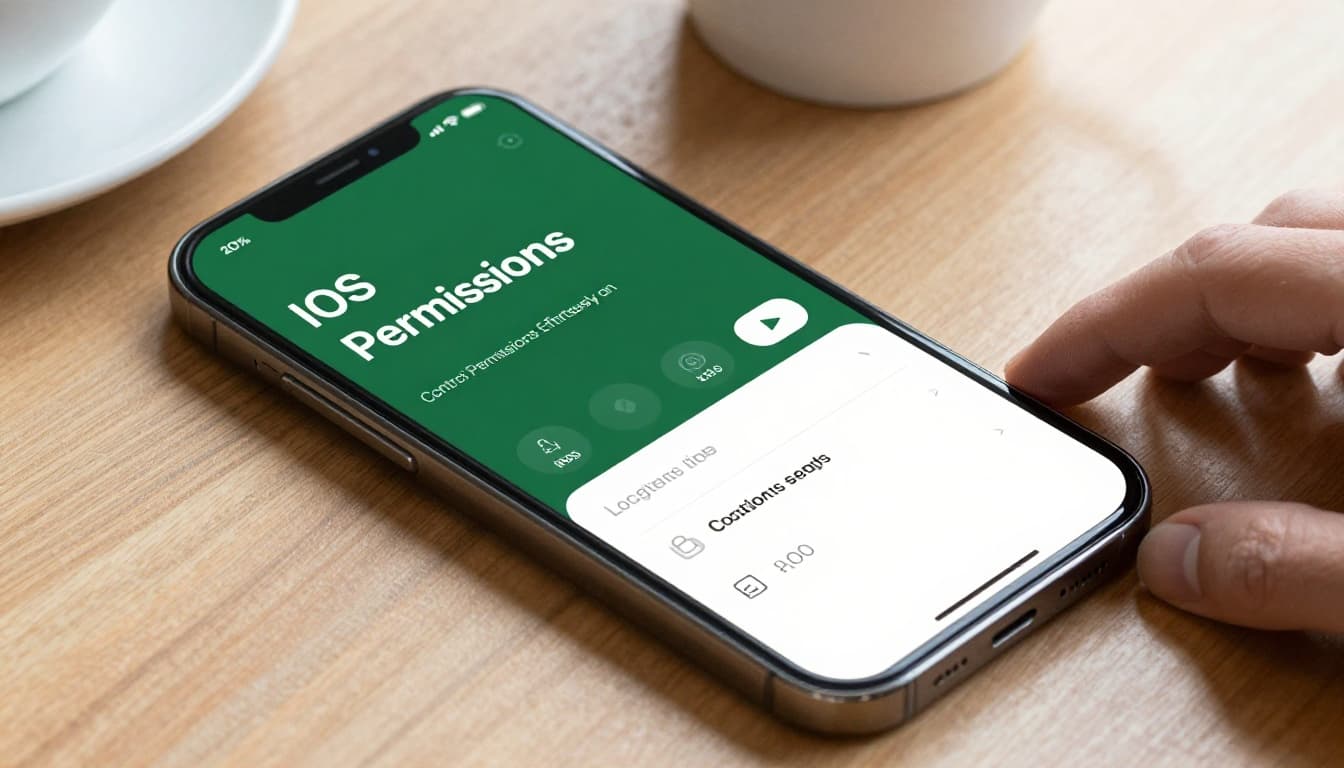
Open Settings. Tap Privacy & Security. Pick Location Services. Toggle apps to Never or While Using. News apps get none for contacts.
Search bar helps. Type camera. Jump straight there. Match needs: photos to editors only. Updates prompt checks.
In 2026, labels detail data before install. Dashboard shows recent access. Monthly scans fit busy days.
Apple’s guide to app access covers options clear.
Quick Path to iOS Permission Settings
These steps fly. Use categories for bulk.
- Launch Settings. Grey gear on home.
- Tap Privacy & Security. Scroll down.
- Choose category. Like Photos or Microphone.
- Find the app. Toggle to None, While Using, or Always. Photos offer Selected Photos too.
Per app: Settings, scroll to app name, Permissions. Same toggles.
Example: Deny calendar to fitness trackers. They count steps fine.
iOS 2026 Updates That Make It Simpler
Privacy labels expand. See third-party data shares upfront. Tracking asks block cross-app follows.
Dashboard logs seven days of camera or location hits. Lock apps with Face ID. Hide My Email masks you.
Just-in-time prompts tie to use. AI shares need extra OK. No broad grants by default.
You control with less effort. Protection builds in.
Smart Habits and Pitfalls to Skip for Lasting Privacy
Build routines now. Grant only what apps need. Temporary access works best. Review after installs or updates.
Enable auto-reset on Android. Use iOS Dashboard weekly. VPN shields public Wi-Fi.
Skip these traps:
- Auto-allow all prompts.
- Ignore notifications.
- Rare checks only.
- Miss labels pre-download.
Tracking hides in mic or photos. Data sells quiet. Sort by permission type. Scan one category Sunday.
Cross-platform: Match access to function. News apps skip contacts. Games drop location.
Check one app today. Peace follows.
You now know steps for Android and iOS. Permissions stay tight with habits. Privacy wins show in less spam and faster phones.
Start small. Pick your banking app. Review now. Share your wins below. Subscribe for more tips on easy phone security. Control awaits.