Your phone freezes mid-scroll. Apps crash one after another. Battery drains faster than usual. These glitches happen to everyone. In 2026, with Android 16 and iOS 20 packed with new features, a quick fix can save the day. Knowing how to restart and reset your smartphone safely keeps your data secure and your device running smooth.
Restarts handle minor hiccups without erasing anything. Resets wipe everything clean for bigger problems. Pick the wrong one, and you risk losing photos or contacts forever. This guide covers the differences. It shares backup tips first. Then you get step-by-step instructions for Android and iPhone. Follow these, and you’ll avoid common traps.
You can fix most issues in minutes. Let’s start with when to restart or reset.
Know When to Restart vs Reset: Pick the Right Fix for Your Phone Glitches
Phones act up for simple reasons. Overloaded memory causes lag. A bad app update freezes screens. Restarts clear temporary files. They refresh the system fast. Resets go further. They erase all apps, settings, and files. Use restarts daily. Save resets for selling your phone or stubborn viruses.
A soft restart works like turning off a light switch. It shuts down normally. Your data stays safe. Force restarts help frozen devices. They reboot without menus. Factory resets return the phone to day-one state. Always back up before that step.
What a Soft Restart Does and When to Use It
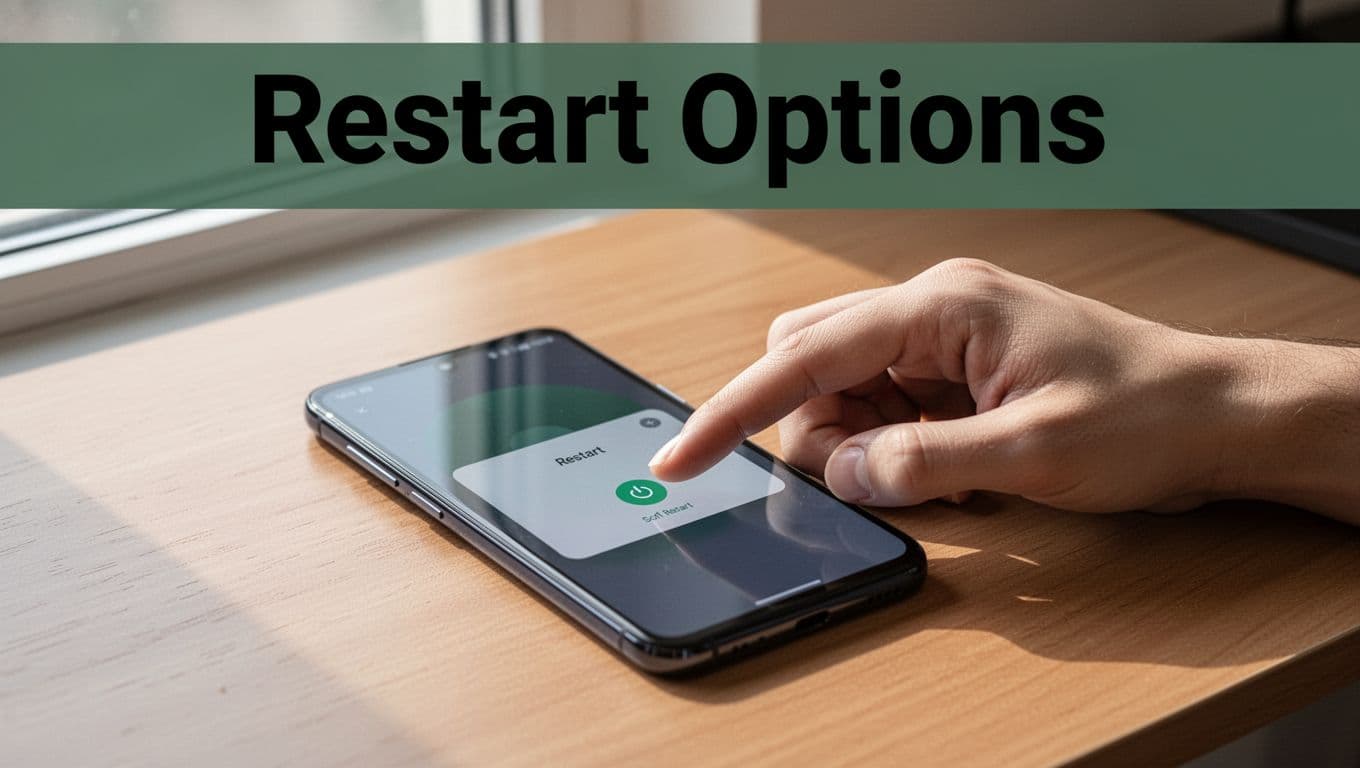
Soft restarts fix slow performance. Apps respond better after. No data loss occurs. Press and hold the power button. The menu pops up in seconds. Tap restart. Confirm if needed. The screen goes black. It boots up fresh in under a minute.
Use this for daily tweaks. Battery acts odd? Try it. Notifications pile up? Restart clears them. Most phones on Android 16 or iOS 20 respond quick. If it works, skip harder steps.
Force Restart: Your Go-To for Frozen Phones
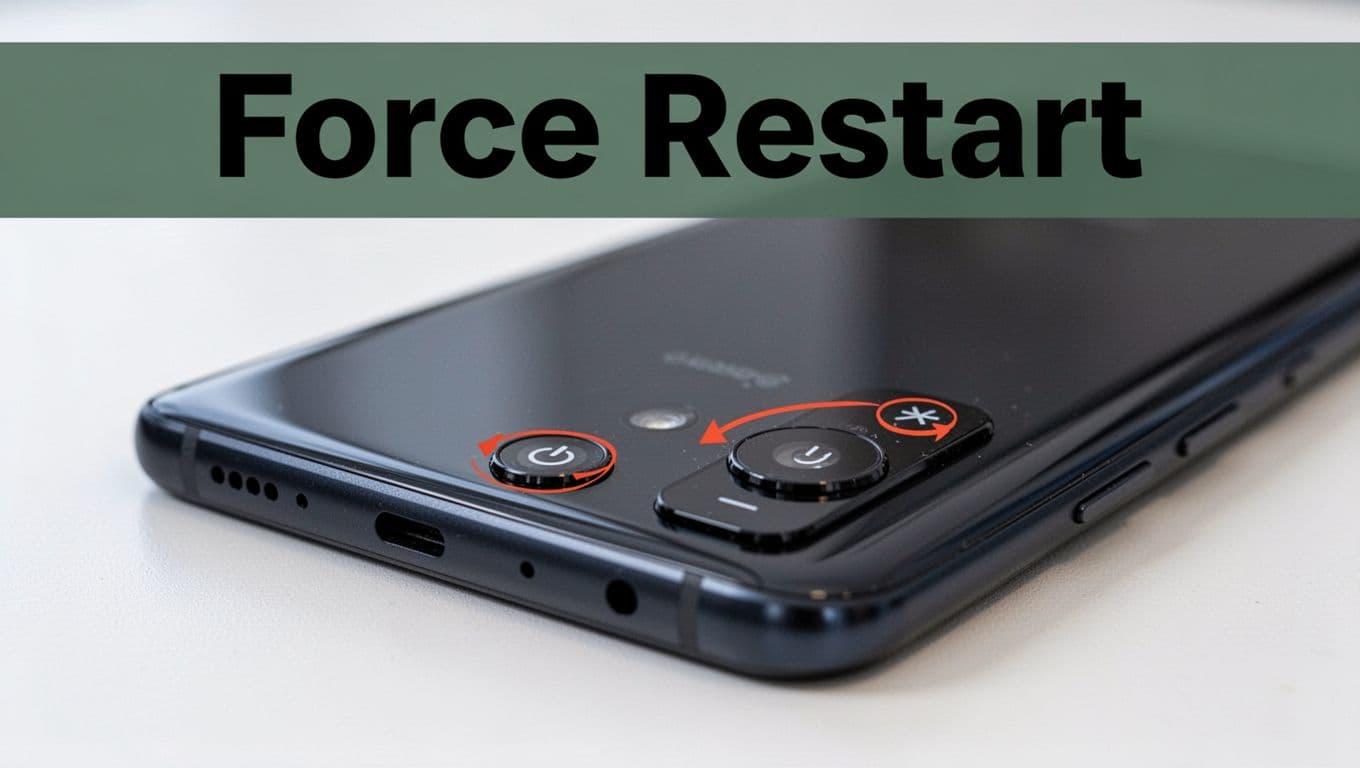
Screens lock solid sometimes. Touch ignores you. Force restart breaks the freeze. Data remains intact. No menus needed. Hold power and volume down together. Keep holding 10 to 15 seconds. Release at the logo. Vibration signals success.
This method revives unresponsive devices. It clears RAM glitches. Phones boot normally after. Test it on laggy mornings. Results show fast.
Backup Your Phone Data First: Save Photos, Contacts, and Apps Effortlessly
Factory resets delete everything. Photos vanish. Contacts disappear. Apps reset to zero. Backups prevent that pain. They save your life before a big wipe. Google Drive handles Android 16. iCloud covers iOS 20. Both run automatic on Wi-Fi.
Charge to 70 percent first. Connect to strong Wi-Fi. Turn on backups in settings. Google saves apps, texts, calls, and settings. Add Google Photos for media. iCloud grabs messages, photos, and device data. Check details to confirm.
Manual backups take minutes. Tap back up now. Wait for completion. Full storage? Buy more space. Asurion experts note automatic options work best if enabled early.
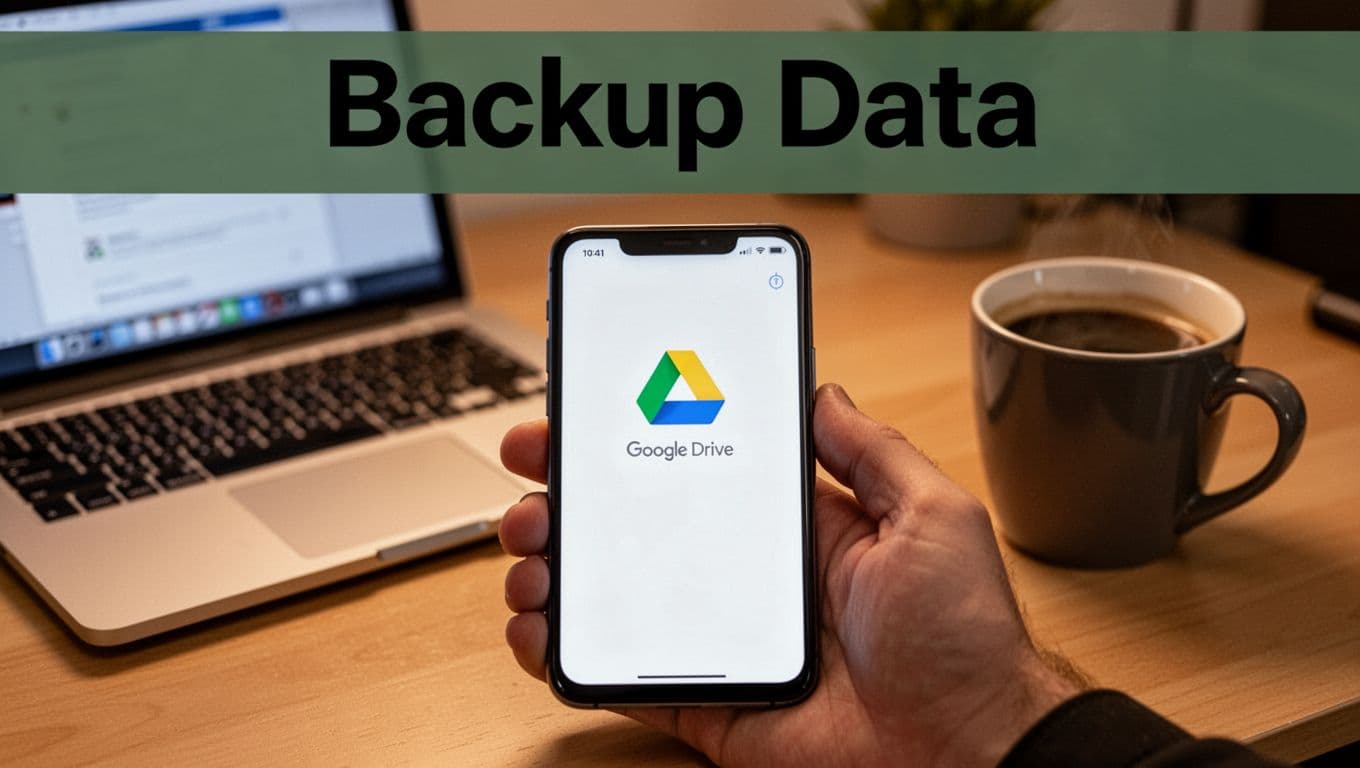
For Android, go to Settings, then Google, then Backup. Toggle it on. Photos need separate setup. iPhone users tap your name, iCloud, then iCloud Backup. Hit back up now. Verify in storage details. Restores happen during setup post-reset. No backup means starting over. Do this habit now.
Step-by-Step Guide: Restart and Reset Android Phones on Android 16 Safely
Android 16 runs stable. Restarts fix most woes. Follow these exact steps. Charge your phone. Use Wi-Fi. Sign out of Google first to dodge locks.
Google’s Pixel support outlines resets clearly. Samsung paths differ slightly.
Quick Soft and Force Restarts for Android
Soft restart: Hold side button 1-2 seconds. Tap restart. Confirm.
Force restart: Hold side button plus volume down 10-15 seconds. Release at logo. Works on Samsung Galaxy and Pixel.
Factory Reset Through Settings When Phone Works
Settings app opens? Use it.
- Go to Settings > System > Reset options. (Pixel)
- Or General management > Reset. (Samsung)
- Tap Erase all data or Factory data reset.
- Review, then delete all.
Phone wipes clean.
Recovery Mode Reset for Locked or Frozen Androids
Phone ignores touches? Boot to recovery.
- Hold side plus volume down to bootloader.
- Select recovery mode.
- Hold side, tap volume up once. Release.
- Choose wipe data. Confirm. Reboot.
Extra Tips for Samsung Galaxy and Google Pixel Users
Samsung: Recovery uses side, volume up, Bixby sometimes. Check model.
Pixel: Remove Google account pre-reset to skip FRP. Sign back during setup.
iPhone Owners: Easy Ways to Restart and Reset on iOS 20 Without Hassles
iOS 20 keeps things simple. Buttons match recent models. Back up to iCloud first. Enter passcode ready.
Apple’s support page details force restarts precisely.
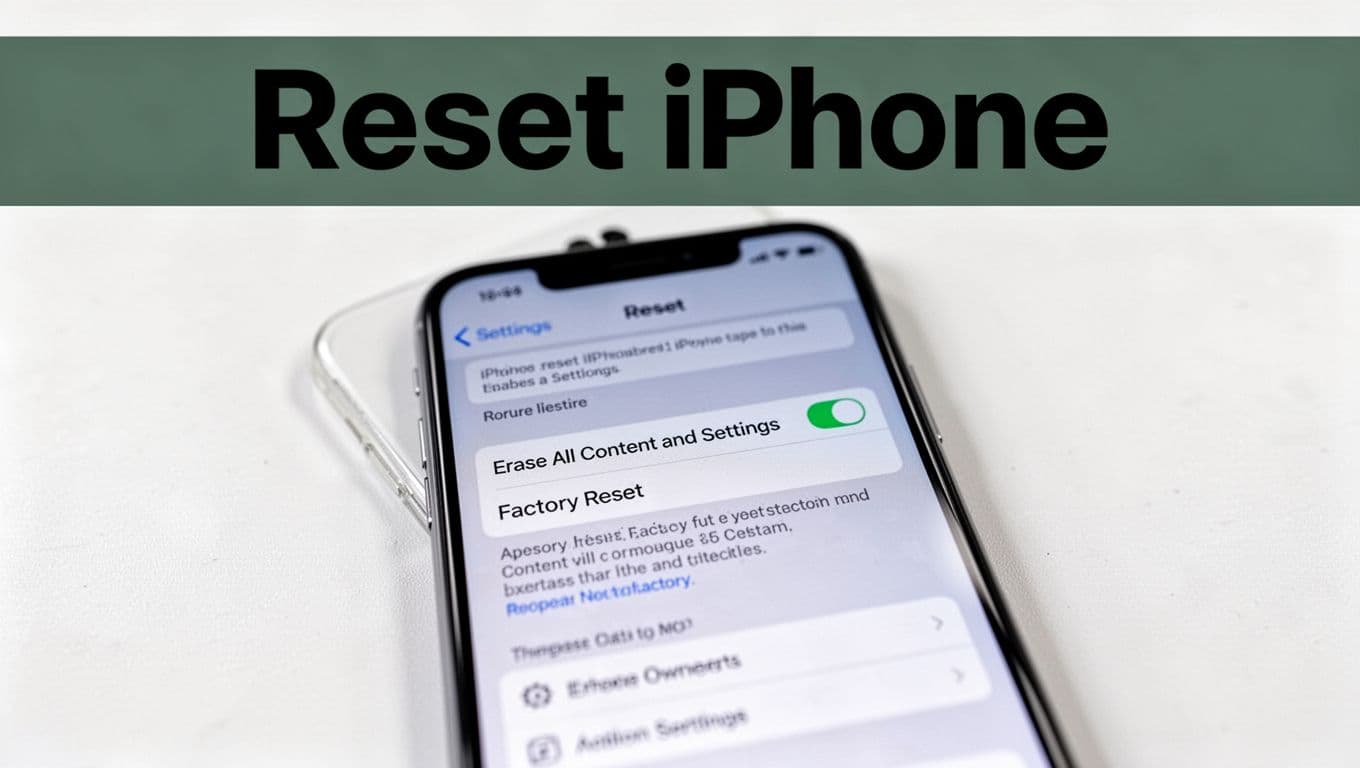
Simple Soft and Force Restarts for iPhone 8 and Newer
Soft: Hold side button. Slide to power off. Wait 30 seconds. Hold side to logo.
Force: Quick volume up release. Quick volume down release. Hold side till logo. 10-20 seconds.
Older models vary. Check buttons.
Full Factory Reset from iPhone Settings
- Settings > General > Transfer or Reset iPhone.
- Erase All Content and Settings.
- Enter passcode or Apple ID. Confirm.
For frozen, use computer recovery if needed.
Steer Clear of These Pitfalls: Risks and Fixes for Smooth Phone Resets
Data loss hits hardest. Back up always. FRP locks Android post-reset. Sign out accounts first.
Wrong buttons brick devices rarely. Retry combos. Low battery fails mid-process. Charge ahead.

Can’t reach settings? Recovery saves you. Post-reset, run setup wizard. Restore from backup. Tests show these steps work 99 percent of time.
Ready to Refresh Your Phone?
Backups protect your world. Match restarts to glitches. Resets fix deep issues. Android 16 and iOS 20 handle them smooth.
Try a soft restart today. Notice the speed boost. Share your fixes in comments. Subscribe for more tips.
Your phone stays safe. You stay in control.