Picture this. You’re in a rush, navigating to an important meeting, and your smartphone freezes completely. The screen locks up. No response. Panic sets in, especially if it’s mid-call or during a critical email. This happens to Android users on Pixels and Samsungs, plus iPhone owners alike. Smartphone freezes frustrate everyone because they strike without warning.
Common causes include software bugs, like the recent March 2026 Google Pixel update messing with lock screens and always-on displays on Pixel 10, 9a, and older models. Overloaded apps or low storage play roles too. Most issues stem from software, so you can fix them yourself.
This guide walks you through spotting causes first. Then, try quick fixes like force restarts. Next come deeper software steps. Finally, learn prevention habits. These simple actions work for most people. Best part? They avoid data loss in nearly every case. Let’s get your phone running smoothly again.
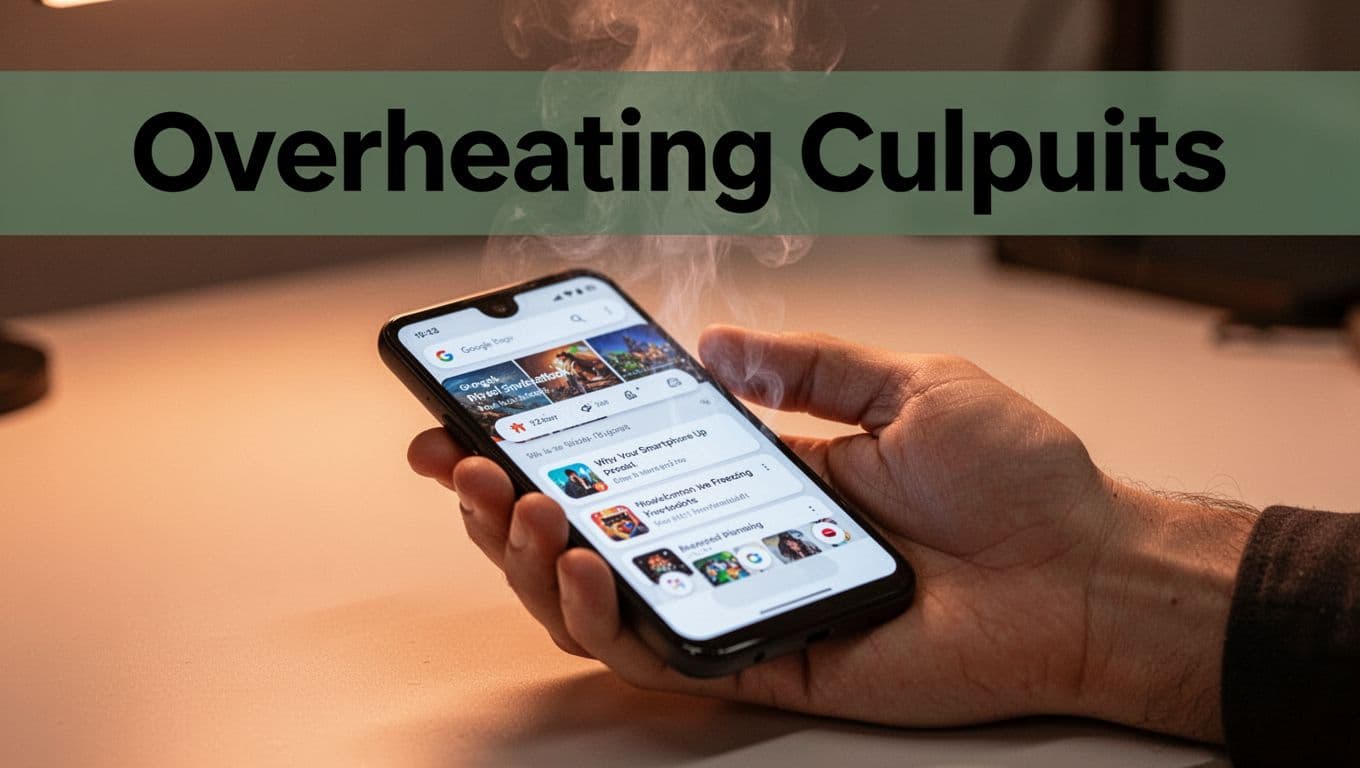
Why Is Your Smartphone Freezing Up? Common Culprits
Your phone acts like a busy kitchen sometimes. Too much going on, and it stalls. Freezes often tie back to software hiccups or overload. For example, recent reports show Google Pixel phones freezing on lock screens after the March 2026 update. This affects Pixel 10, Pixel 10 Pro, Pixel 9a, and Pixel 8 Pro models. Users see the screen stop responding, especially with always-on display active. Haptic feedback might trigger it too.
Android 16 devices face similar woes from buggy updates. iPhones on iOS 26.3.1 or 26.2.1 report lags and stalls, often from app crashes or low storage. Hardware rarely causes freezes, but it happens. Knowing the trigger helps you act fast.
Here’s a quick rundown of top reasons:
- Software bugs: Updates gone wrong top the list right now.
- App overload: Too many background tasks slow everything.
- Low storage: Over 80% full space chokes performance.
- Overheating: Heavy gaming or charging builds heat.
- Rare hardware: Faulty displays or batteries.
Most freezes fix with software tweaks. Check recent Pixel issues for details in this Android Headlines report.
Software Glitches from Updates and Apps
Updates promise better security. Sometimes they deliver bugs instead. Google’s March 2026 Pixel Drop caused lock screen freezes. Phones lock up on unlock or AOD checks. Multiple restarts per day annoy users. No full fix exists yet. Google support reached some folks, but patches lag.
Android 16 had AOD glitches at launch, fixed before. Now they return. iOS sees app stalls post-26.3.1. Apps crash, Safari lags, camera hangs. Check forums like Reddit before updating. Roll back if possible, though the bug recurs on reinstall.
Test suspect apps. Delete recent ones. This isolates the problem fast.
Overheating, Low Storage, and App Overload
Heat builds during video calls or games. Phones throttle speed to cool down. That leads to freezes. Battery saver modes worsen it sometimes.
Full storage hurts most. Aim for under 80% used. Delete old photos or offload to cloud. Background apps eat RAM. They run silently, piling up tasks.
Close them weekly. These fixes prevent many daily stalls. In short, keep your phone cool and lean.
Quick Actions to Unfreeze Your Phone Right Now
Don’t panic yet. Most freezes clear in under a minute. Start simple. Wait 30 seconds first. Sometimes tasks finish on their own.
Next, disable AOD on Pixels. Go to Settings, then Display. Toggle it off. This dodges the March bug.
Force restart next. It reboots without data loss. Works 90% of the time on Android 16 or iOS 26. These steps suit all models.
For full guidance, see Google’s official Pixel restart instructions.
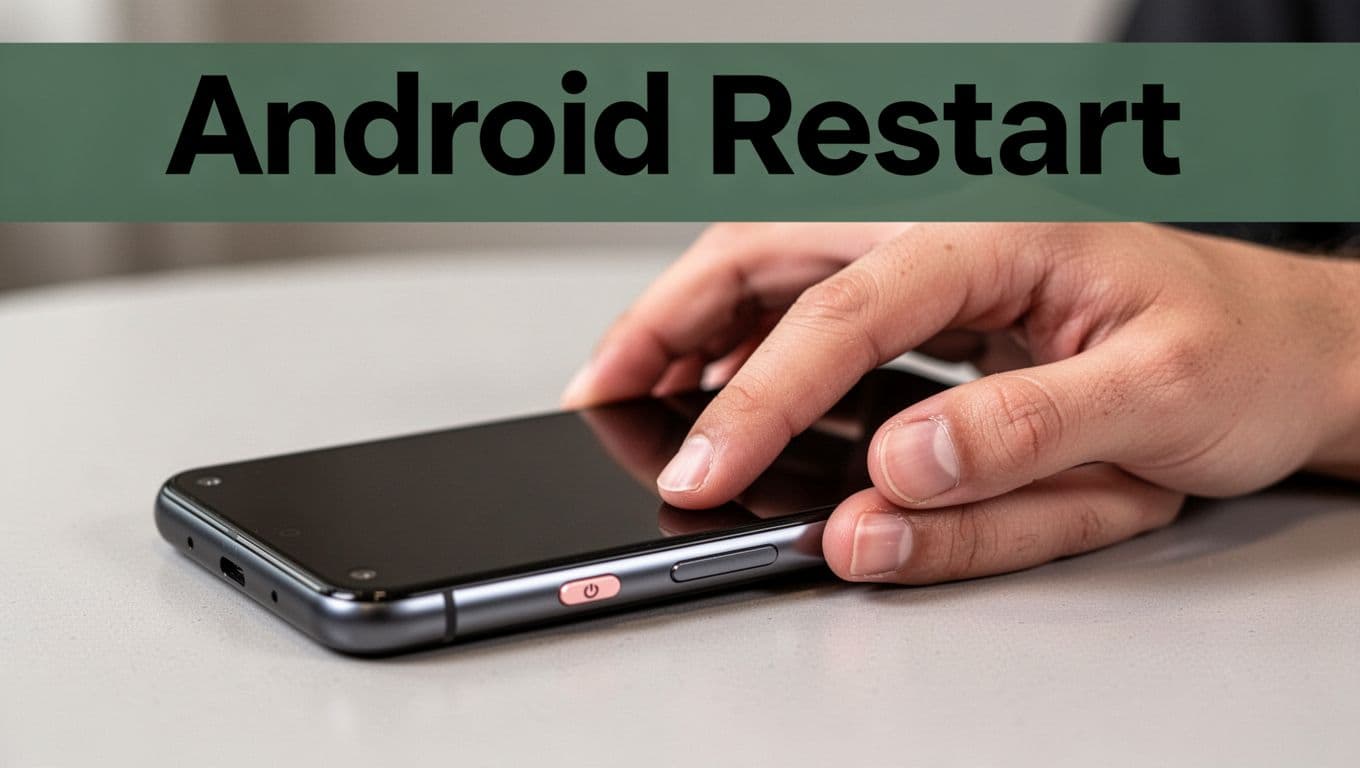
Force Restart on Android Phones Like Pixel or Samsung
Android handles restarts consistently. Most models use the same combo.
Follow these steps:
- Press and hold the power button and volume down together.
- Keep holding for 10 to 30 seconds.
- Release when the screen goes black or vibrates.
- Wait for restart. The logo appears soon.
If responsive, pick Restart from the power menu instead. Samsung and Pixels both respond well. No data erases.
Force Restart Steps for iPhone Models
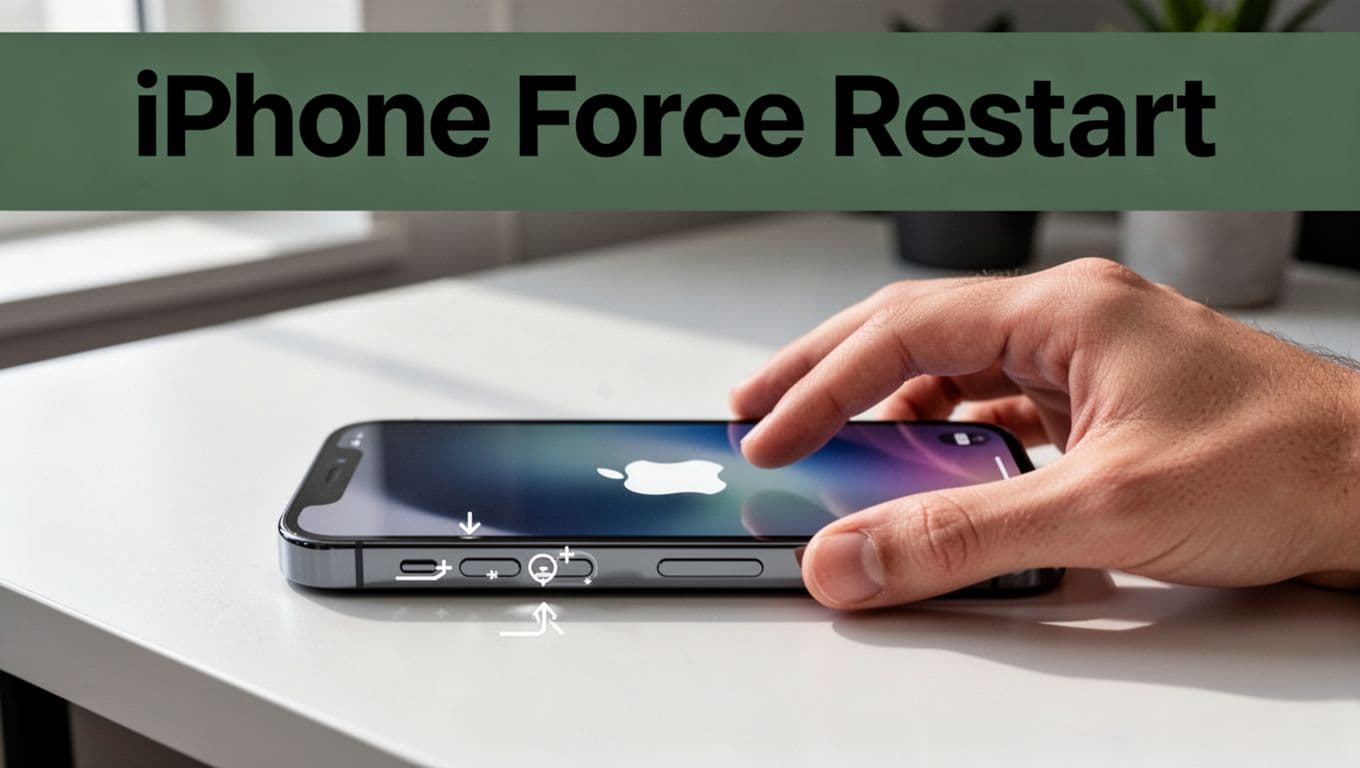
Apple varies by model. No changes in 2026. Pick your way.
iPhone 8 and later (including 17 series):
- Quickly press and release volume up.
- Quickly press and release volume down.
- Hold the side button until the Apple logo shows.
iPhone 7:
- Press volume down and side button together.
- Hold until the logo appears.
iPhone 6s or earlier:
- Press and hold home and top (or side) button.
- Release at logo.
Wait post-reboot. Avoid immediate use.
Dig Deeper: Software Fixes for Stubborn Freezes
Quick restarts fail sometimes. Move to cache clears and safe mode. Test one change at a time. Track what works.
Android shines here. iOS leans on updates or storage frees.
Clear Cache and Try Safe Mode on Android
Bad apps hide in cache. Clear it per app.
Steps for cache:
- Go to Settings > Apps.
- Pick a suspect app.
- Tap Storage and cache.
- Hit Clear cache.
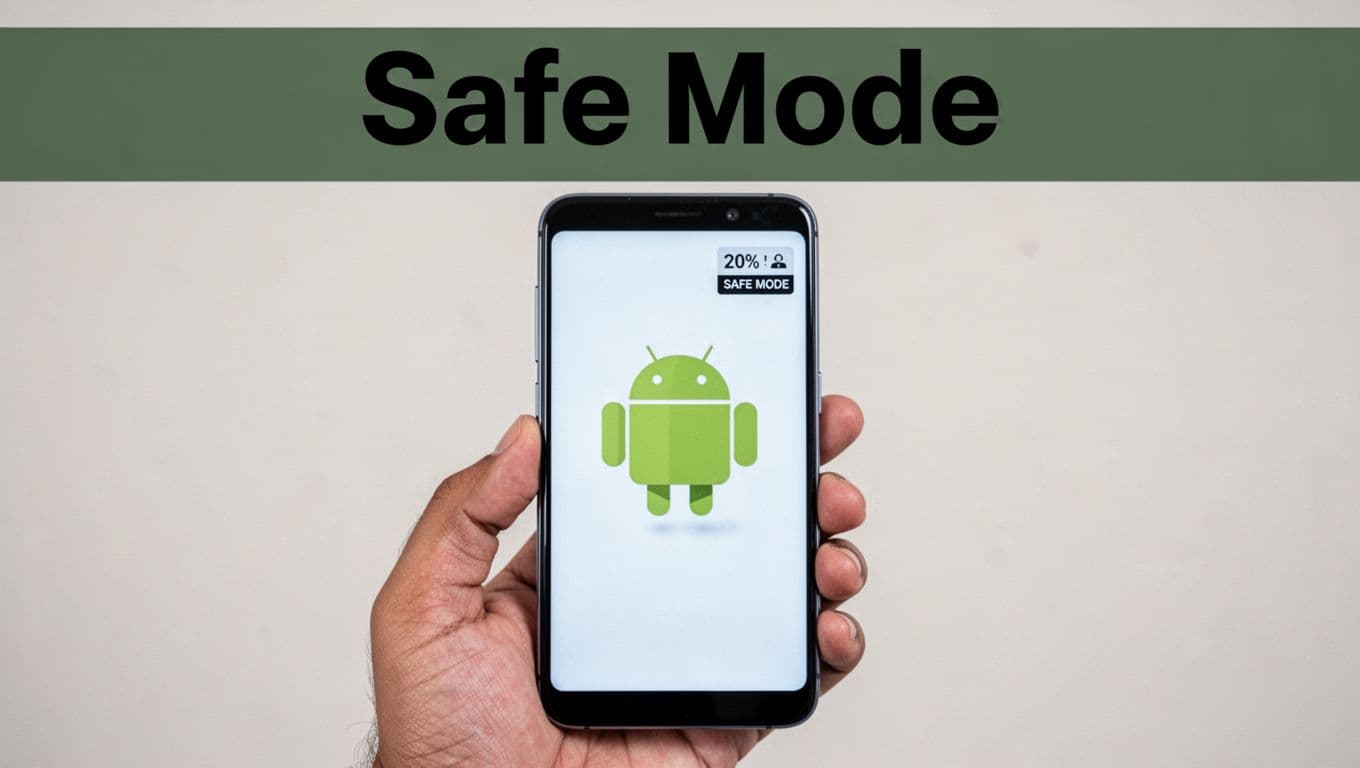
Safe mode boots without third-party apps.
- Force restart as before.
- Hold volume down during reboot.
- Release at “Safe mode” label.
- Uninstall bad apps.
- Restart to exit.
This pinpoints culprits fast.
Update Your Phone Software Safely
Patches fix bugs. Check first.
On Android: Settings > System > System update. Pixels use Play System Update too.
iOS: Settings > General > Software Update.
Pause Pixel March updates. Forums report returns on reinstall. Wait for patches. iOS 26.3 beta might resolve stalls.
When to Factory Reset or Check for Hardware Trouble
Daily freezes persist? Consider reset as last resort. Backup everything first. Hardware signs mean pro help.
How to Factory Reset Without Losing Important Data First
Cloud saves photos. Computers back up full.
Android:
- Settings > System > Reset options > Erase all data.
- Or boot recovery: Power + volume down, select wipe.
iPhone:
- Settings > General > Transfer or Reset iPhone > Erase All Content.
Confirm backup. It wipes everything.
Spot Hardware Problems That Restarts Won’t Fix
Look for these red flags:
- Repeated boot failures.
- Extreme, constant heat.
- Swollen battery.
- Pixel 10 display flickers or glitches.
Physical damage shows too. Visit warranty service then. Software won’t touch these.
Smart Habits to Stop Freezes Before They Start
Prevention beats cure. Adopt these weekly.
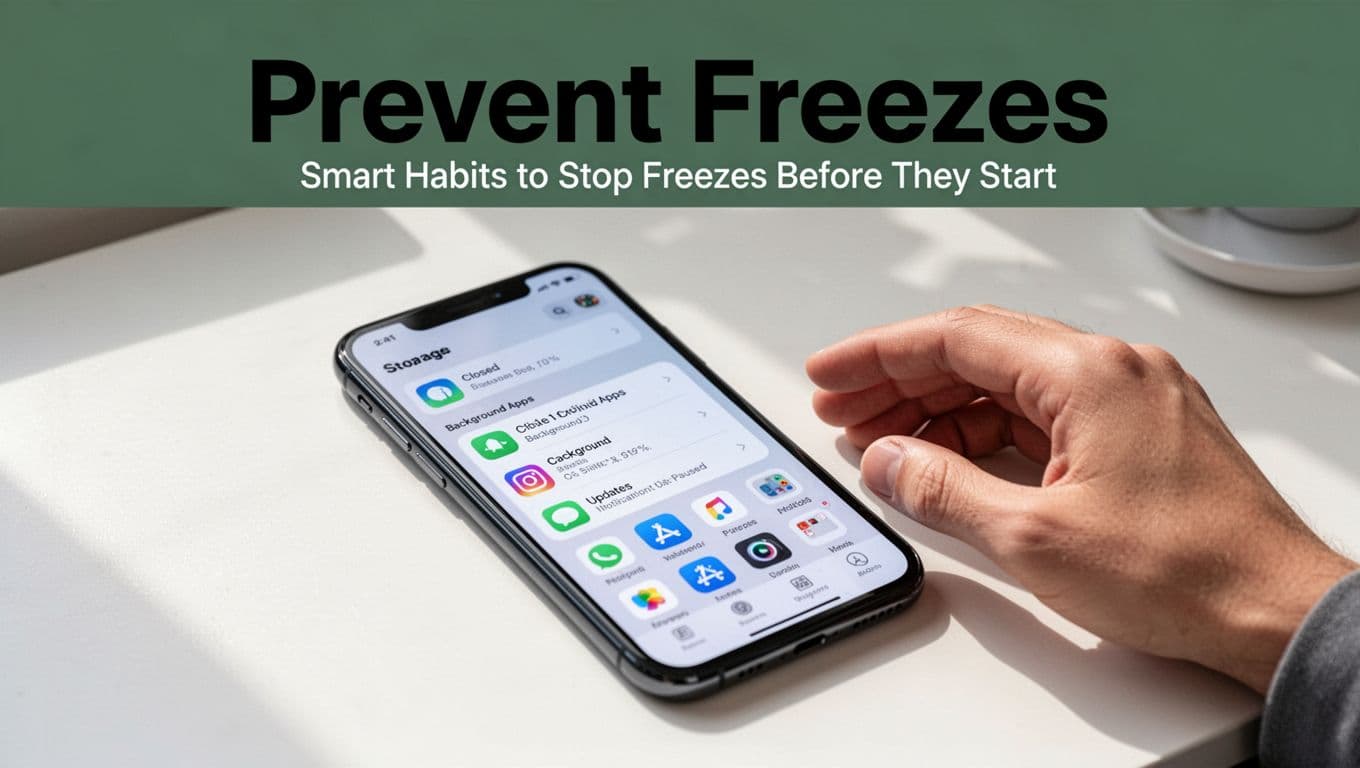
Keep storage below 80%. Delete junk files. Close background apps via recent overview.
Update after forum checks. Disable AOD on glitchy Pixels. Use battery saver wisely.
Restart phones nightly. Cool them during heavy use.
These steps ensure smooth runs. Your phone thanks you.
Force restarts solve most frozen smartphone woes right away. Software tweaks like safe mode handle the rest. Prevention habits keep issues rare.
Try these in order next time. Most users fix without shops or data loss. What worked for your Pixel or iPhone? Share below. Subscribe for more tech fixes. Smooth sailing ahead.
(Word count: 1492)