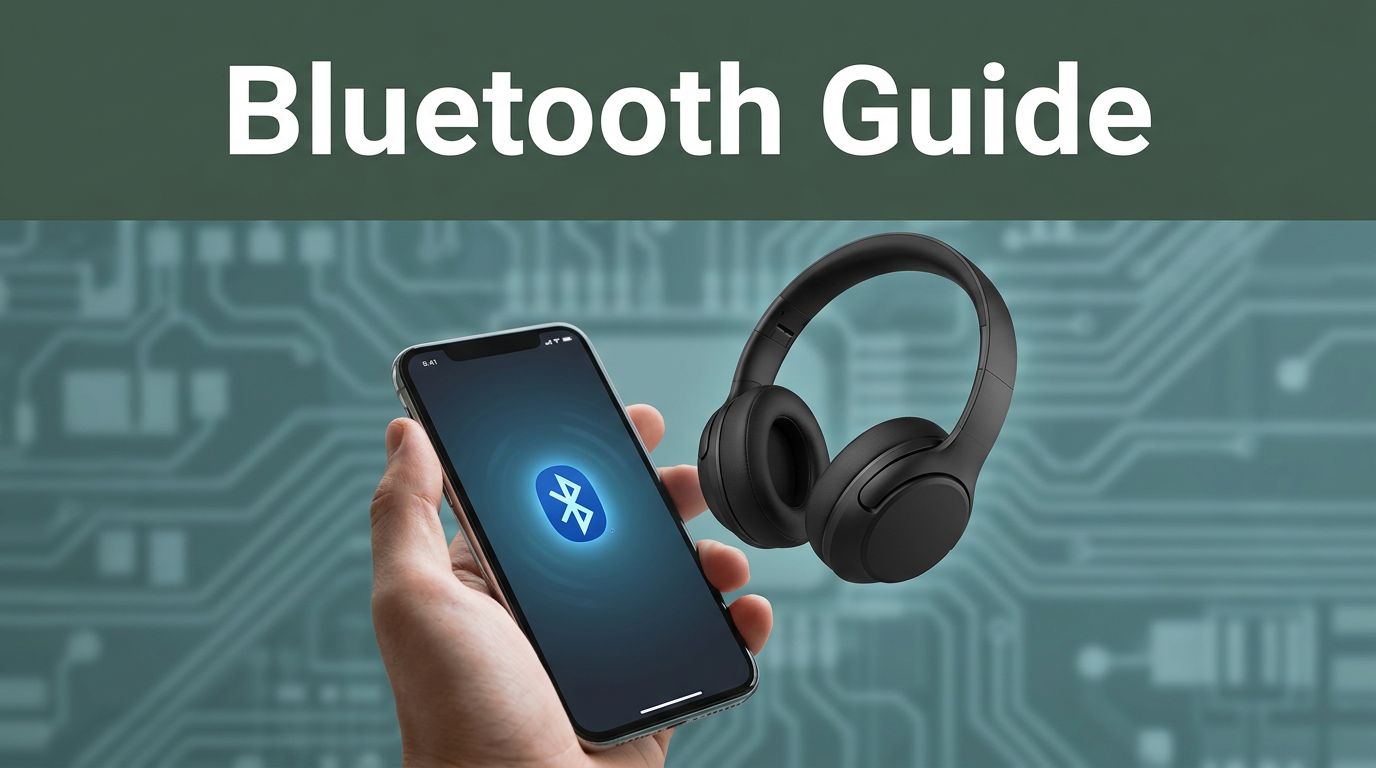
You grab your new wireless headphones, eager to ditch the cords during your commute. But the connection fails, and frustration sets in. Bluetooth fixes that issue. It is a short-range wireless technology that links your smartphone to headphones, speakers, car systems, smartwatches, and more without cables.
Bluetooth works over distances up to 30 feet. It uses radio waves, so no Wi-Fi or data needed. In March 2026, most phones run Bluetooth 5.3 or 5.4, with 6.0 appearing in flagships like recent Pixels or iPhones. These versions offer better range, speed, and battery life. Fun fact: Bluetooth Low Energy sips power, often less than 1% per hour on idle.
This guide shows you easy steps. You will learn to turn it on and off, pair devices on Android and iPhone, fix common glitches, and get top performance. Follow along, and you will connect effortlessly. No tech degree required. Let’s start with the basics.
Turn Bluetooth On and Off Without the Hassle
You must enable Bluetooth before pairing. Otherwise, your phone ignores nearby devices. Turn it off to save battery during flights or long standby. Modern versions like 5.3 drain little power, so keep it on most days. Still, toggle saves juice if unused.
Airplane mode disables Bluetooth automatically. Check that first if issues arise. Steps differ slightly by phone, but they stay simple. Android users swipe for quick access. iPhone folks use Settings. For detailed visuals, see this WikiHow tutorial on turning on Bluetooth.
Steps for Android Phones
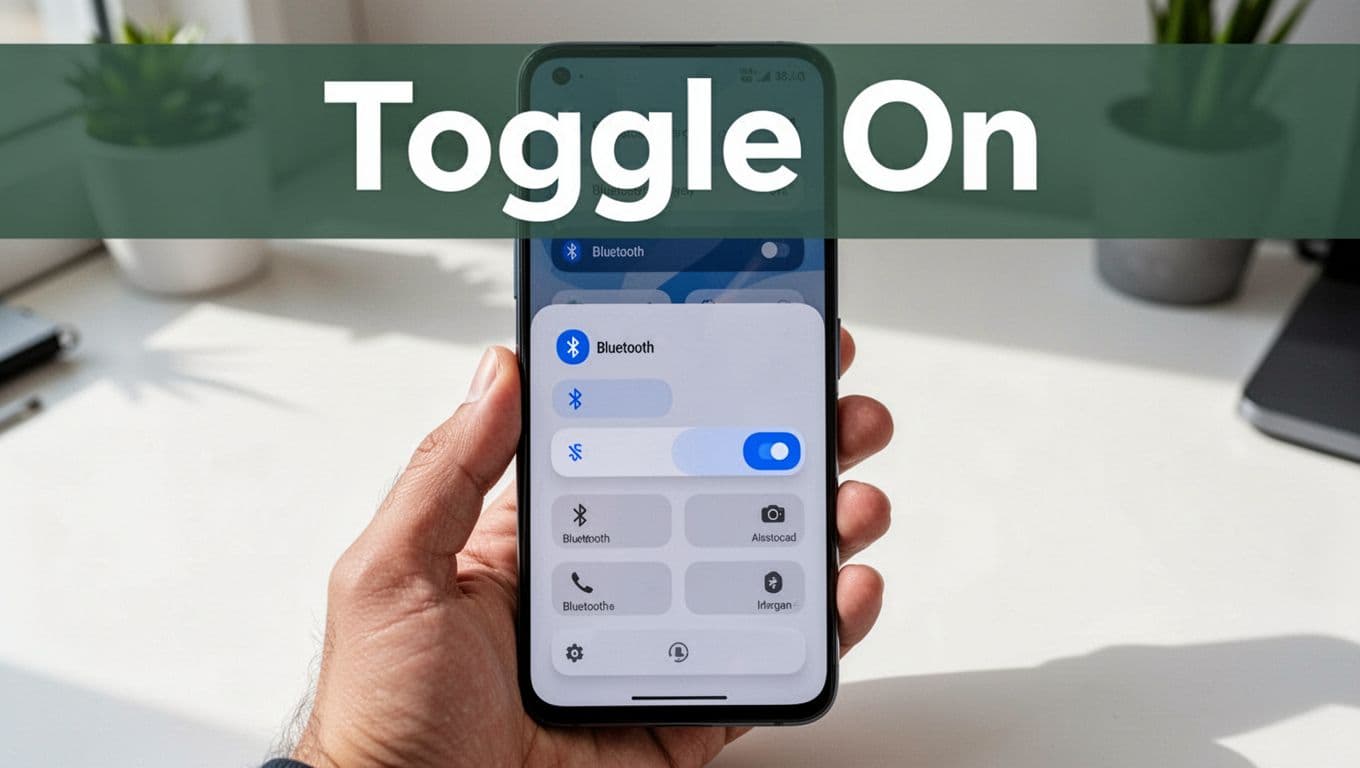
Android makes it fast. First, swipe down twice from the top screen for quick settings. The panel expands. Look for the Bluetooth icon, often a stylized B.
Touch and hold it. The tile expands, and a toggle appears. Slide to on; it turns blue. Your phone scans nearby devices right away.
Or go deeper. Open Settings. Tap Connections or Connected devices. Find Bluetooth and flip the switch. Samsung phones label it under Connections. Pixels use Connected devices. To turn off, reverse the steps. The icon grays out.
Test by opening the full Bluetooth menu. Paired devices show here later. Quick settings work best daily because they save taps.
Steps for iPhone Users
iPhone keeps it straightforward. Open the Settings app from your home screen. Scroll to Bluetooth, about halfway down.
Tap it. A green toggle means on. Slide left to off. No icon changes, but status shows connected devices below.
You can also swipe down from the top-right for Control Center. Tap the Bluetooth icon; it highlights when active. For more on iOS controls, check Apple’s Control Center guide. Both methods sync instantly. iPhones auto-reconnect saved gear.
Pair Your Smartphone with Headphones, Speakers, and Car Kits
Pairing links devices permanently. Do it once; then they auto-connect. Always start with the accessory in pairing mode. Hold its power button until lights blink fast. Check the manual for exact times, often 5-7 seconds.
Range stays under 30 feet. Stay close during setup. Music apps like Spotify route audio automatically once paired. Expect a code like 0000 if prompted. Headphones shine for workouts. Speakers amp parties. Car kits enable hands-free calls.
Put your phone’s Bluetooth on first. Then scan. Android pops Fast Pair for Google items. iOS lists under Other Devices. For headphone tips, Sony offers solid pairing steps.
Pairing on Android Devices
Turn Bluetooth on via quick settings. Open Settings next. Tap Connected devices.
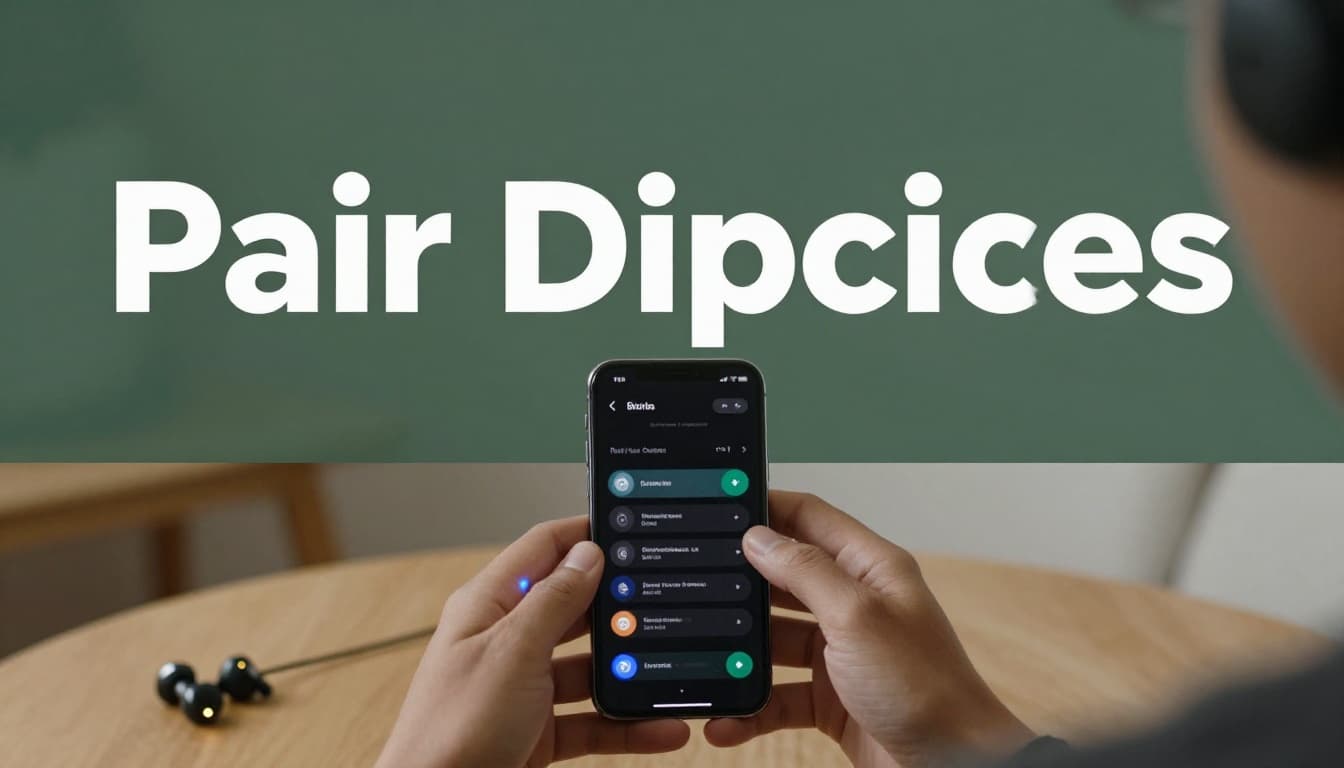
Hit Pair new device. Your phone scans. Available items appear, like “JBL Speaker” or “Car Kit.”
Select one. If a code shows, enter 0000 or 1234. Confirm. It connects; now saved.
Fast Pair speeds Google stuff. A popup appears near compatible headphones; tap Pair. Done in seconds. Check the list anytime. Tap a saved device to connect manually. Cars often say “Pairing” on dash screens.
Pairing on iPhones
Open Settings. Tap Bluetooth.
Put your device in pairing mode. It shows under Other Devices.
Tap its name. Match the code if asked, usually six digits. Tap Pair.
iOS confirms with a popup. Audio switches over. For cars, enable in vehicle settings first. Saved devices reconnect when in range. No re-pair needed.
Solve Bluetooth Glitches Fast with These Fixes
Connections drop sometimes. Do not panic. Most fixes take under a minute. Common woes include no pairing, no sound, or auto-connect fails. Updates in 2026 patch many bugs.
Restart everything first. Toggle Bluetooth off, wait 10 seconds, turn on. Power cycle phone and accessory. Stay within range.
No sound? Check app permissions for microphone or media. Re-pair if needed. For Android fixes, Google lists solid troubleshooting steps.
Restart and Re-Pair Basics
Toggle Bluetooth off and on. Restart your phone: hold power, select Restart.
Do the same for headphones or speaker. Forget the device. On Android, go to Bluetooth list, tap gear, Forget. iPhone: swipe left, Forget This Device.
Pair fresh. Clears glitches. Update your OS too. Android via Settings, About phone. iOS in General, Software Update.
Handle Range and Interference Problems
Keep devices under 30 feet. Walls cut signal; move closer.
Interference from Wi-Fi or microwaves hurts. Turn off nearby routers briefly. Update software; Bluetooth 5.3 fights interference better.
One device at a time. Clear old pairings if the list fills. Phone forgets automatically sometimes, but manual clear helps.
Unlock Better Bluetooth Performance in 2026
Bluetooth shines with tweaks. Keep it on; Low Energy drains minimal battery, under 1% hourly. Update OS and apps monthly. Android needs Location for Fast Pair.
Stay close for best speed. Limit to 7-8 connections; more slows things. Bluetooth 5.3 offers longer range and low latency. Version 6.0 adds Channel Sounding for precise tracking, now in some phones.
For details on 6.0 perks, PCMag covers Bluetooth 6 advances.
Check specs in Settings, About phone. Enable developer options for tweaks like absolute volume off on Android. Multi-point pairs two devices, like phone and laptop.
Music streams smoother. Calls stay clear. Your setup lasts longer.
Master these steps: enable Bluetooth, pair once, fix quick, optimize daily. Grab your headphones or hop in the car now. Connections work flawlessly.
Share your wins in comments. What device pairs easiest? Subscribe for more tech how-tos. Bluetooth basics endure as tech grows. Enjoy wireless freedom today.